Run the following command:
curl -sSL https://www.anyway.dev/install.sh | shanyd and any-cm are placed in .local/bin/anyway.
To check the version:
anyd --version
any-cm --version
Anyway daemon (anyd) must be running on every GPU machine you want to manage. To do so, you just need to run the following command:
anyd [--port=9100]--port flag. Once running, it will accept
commands from the Control Manager.
Anyway Control Manager (any-cm) can run on a machine with or without GPU.
It serves a browser-based User Interface that you use to manage your machine cluster.
any-cm [--port=3000]--port flag. The dashboard is accessible from any browser at
http://<control-manager-ip>:3000.
The Control Manager (any-cm) communicates with each Anyway process (anyd) running on your machines.
admin and a random admin password is
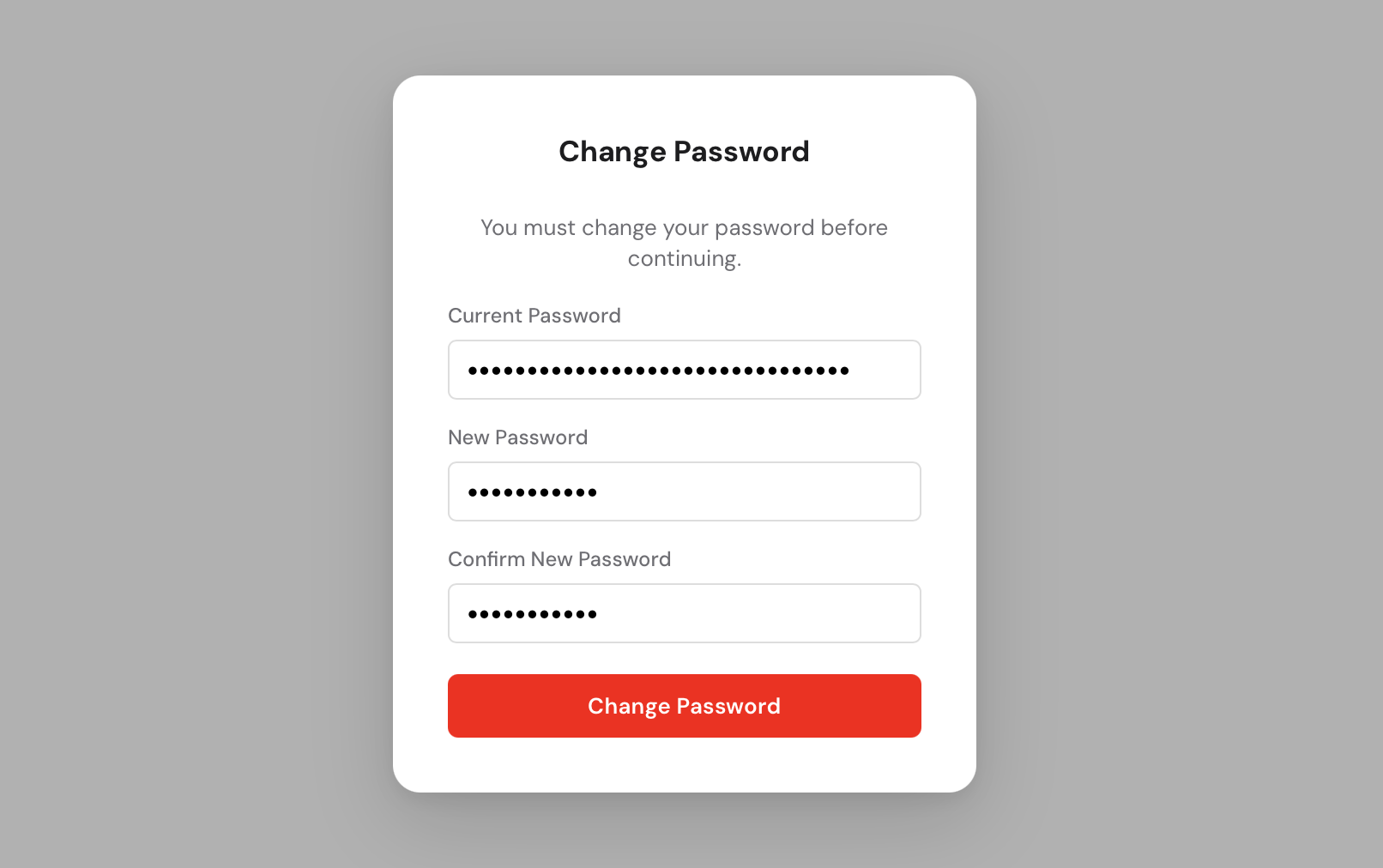
generated and printed to the console. Copy it before closing the terminal, you will need it to log in. You will be prompted to change it immediately after your first login.
Open your browser and navigate to http://<control-manager-ip>:3000.
You will be greeted by the login screen.
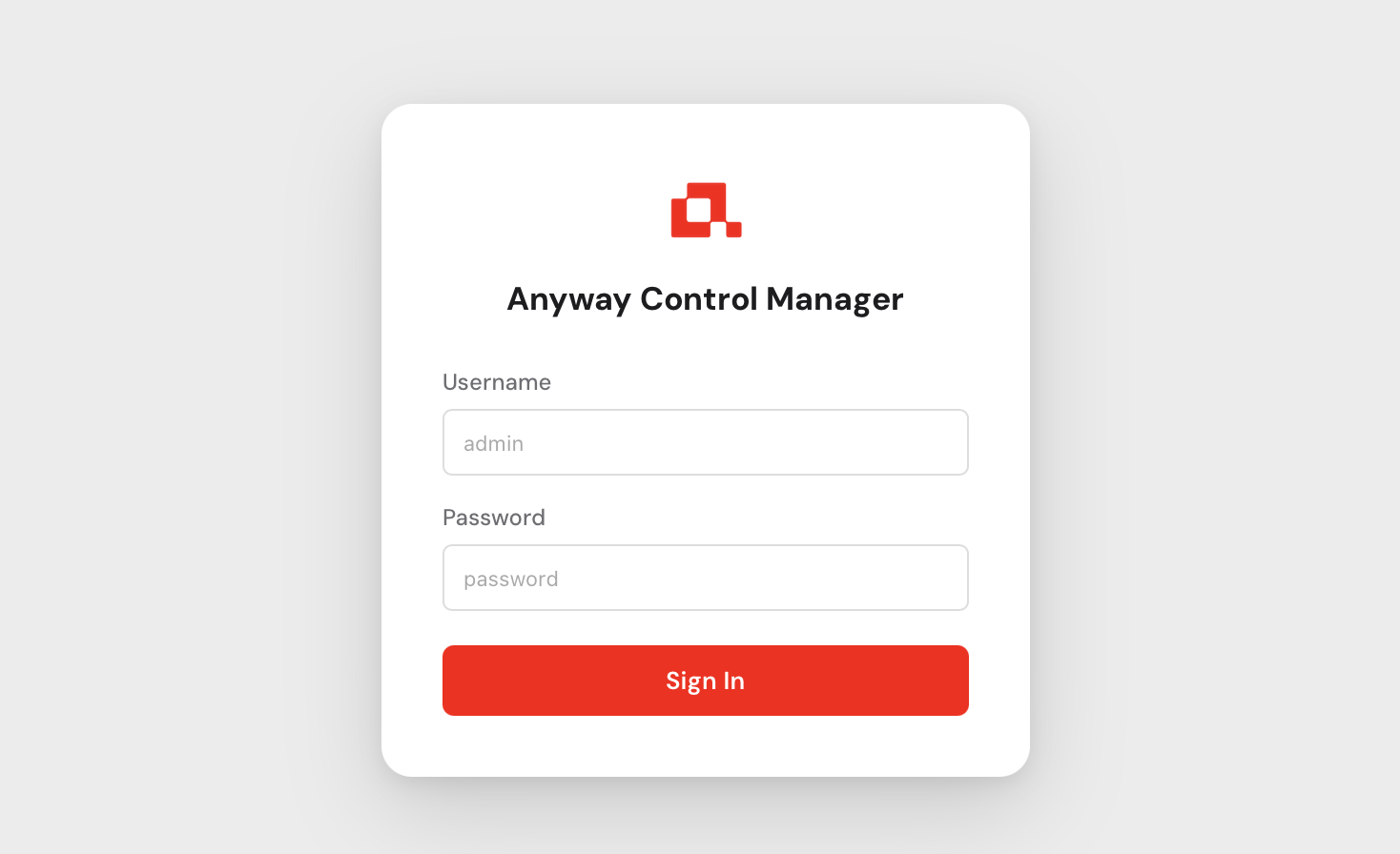
Use admin as the username and the password that was printed to the console
when you first started any-cm. After logging in you will be asked to set a new
permanent password.
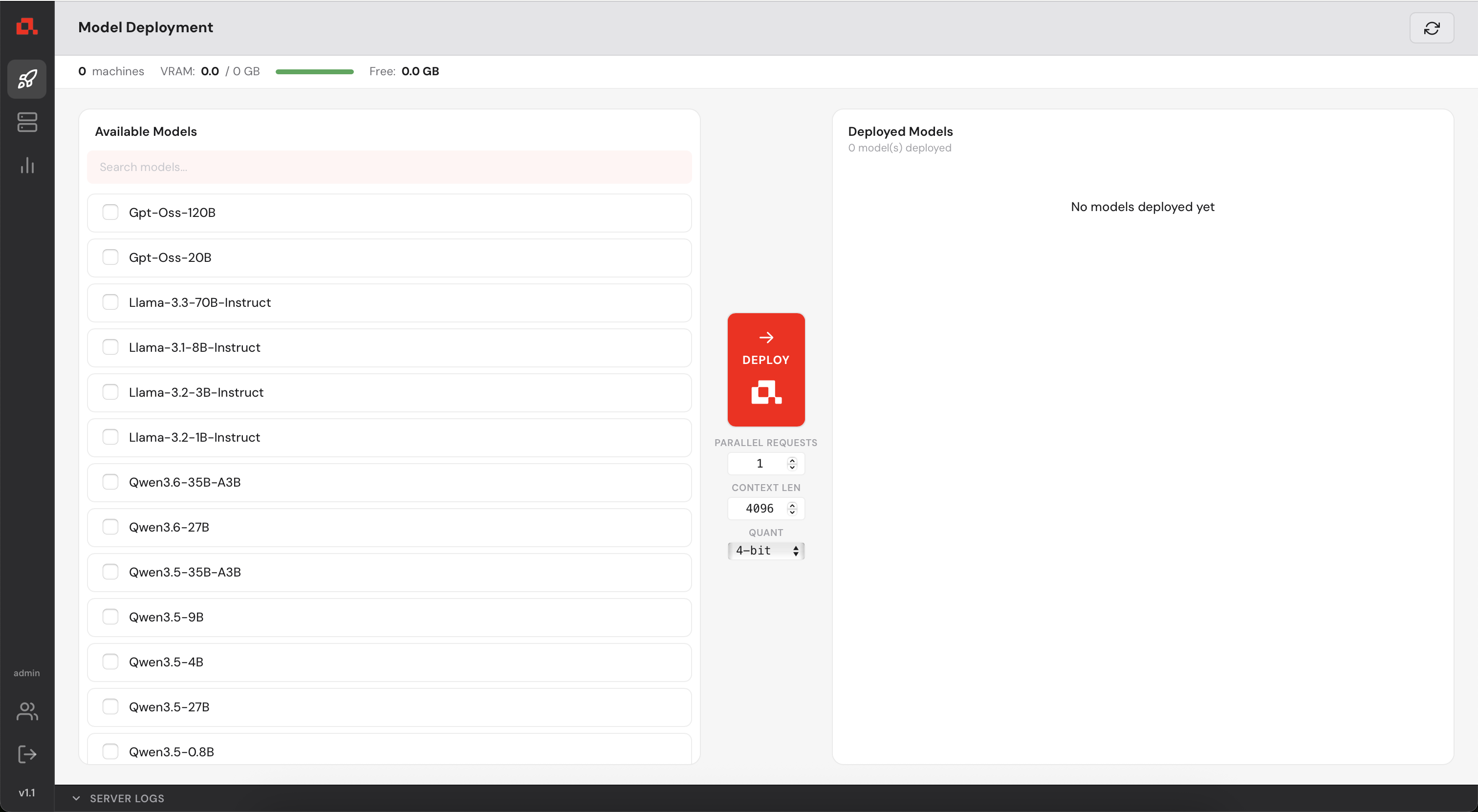
You now have access to the Control Manager.
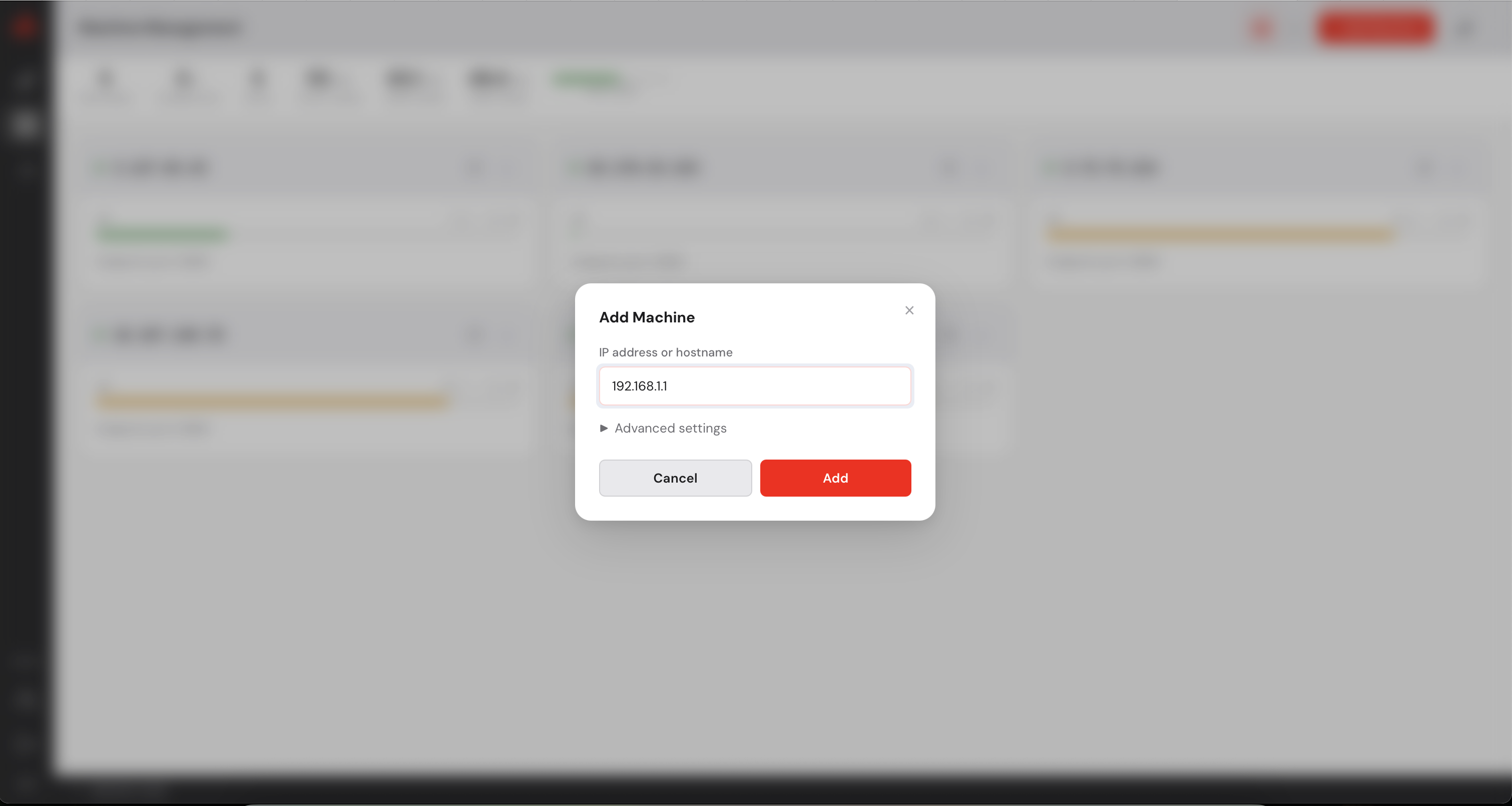
Before deploying any model, you need to register your GPU machines with the Control Manager.
Each machine must be running anyd (see step 2).
 in the left sidebar, then click on
  in the top right corner.
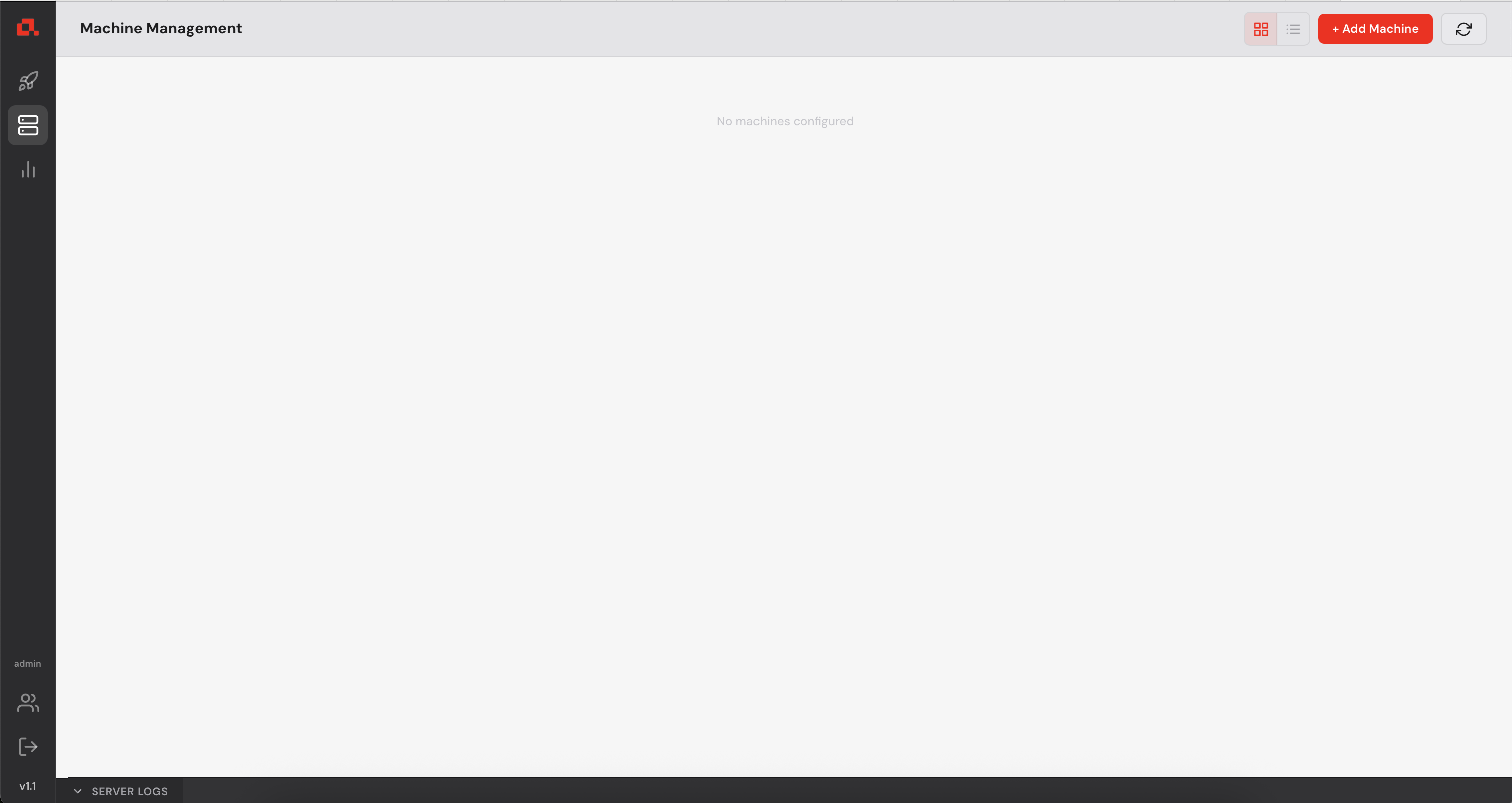
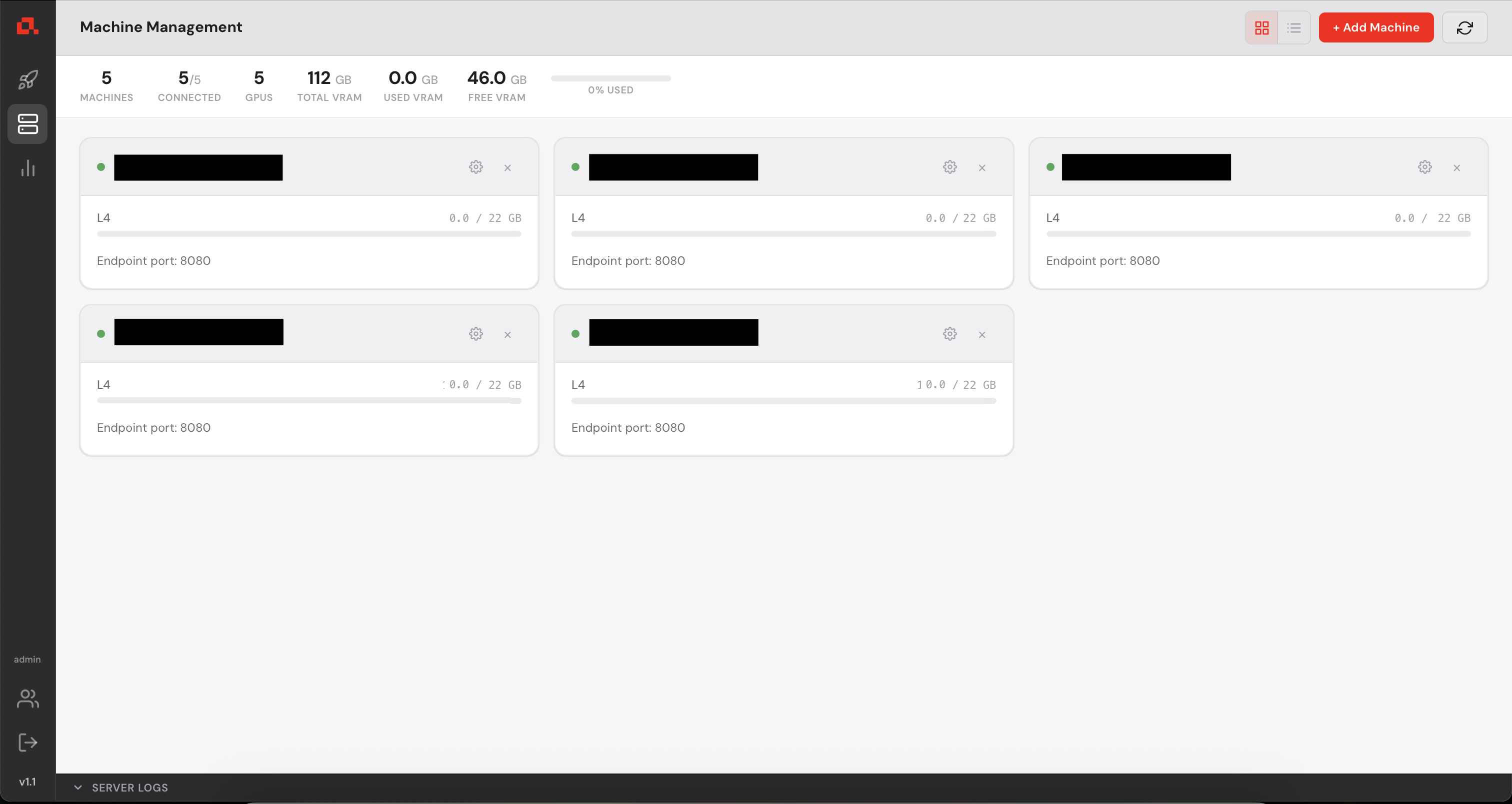
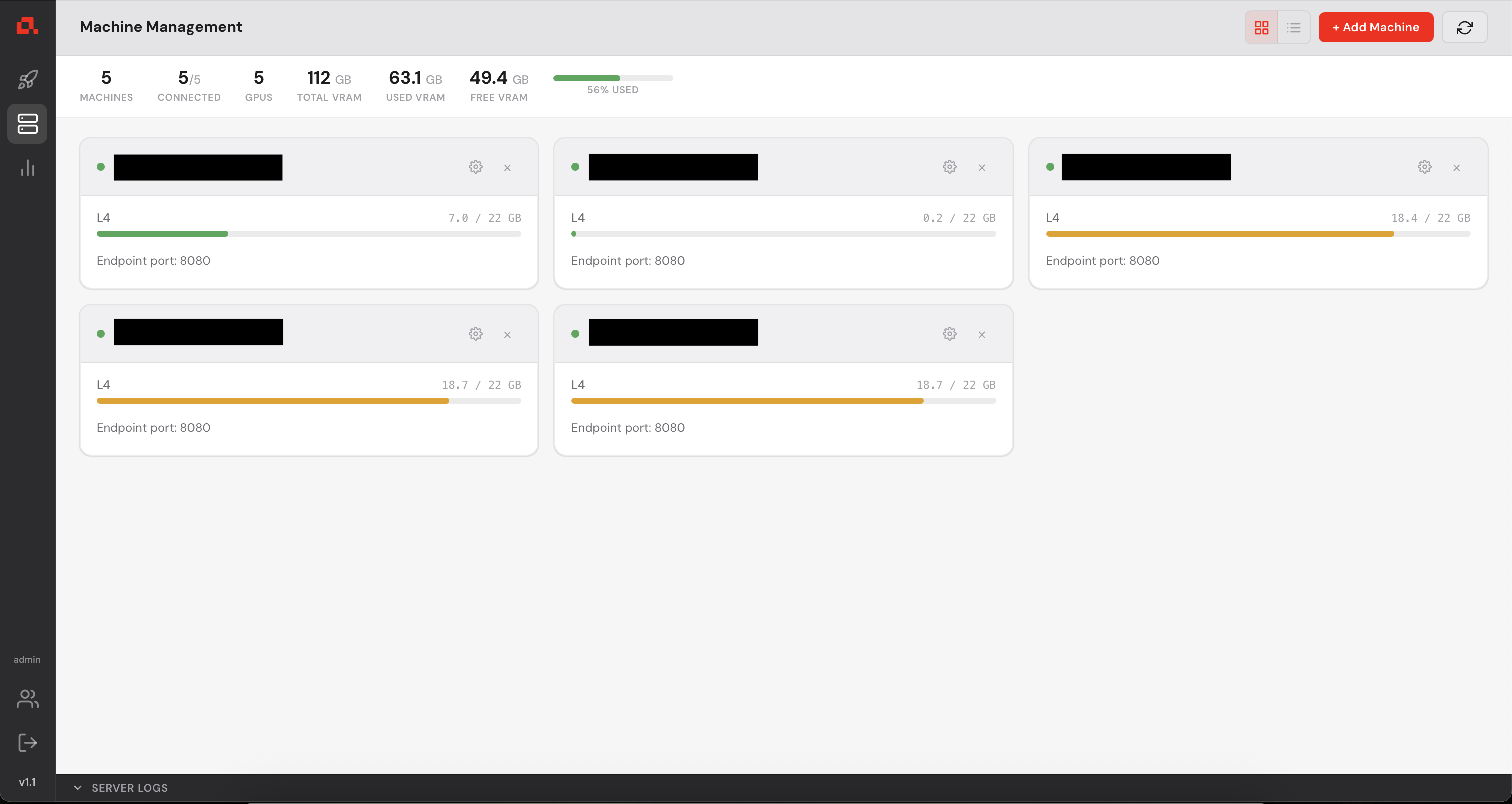
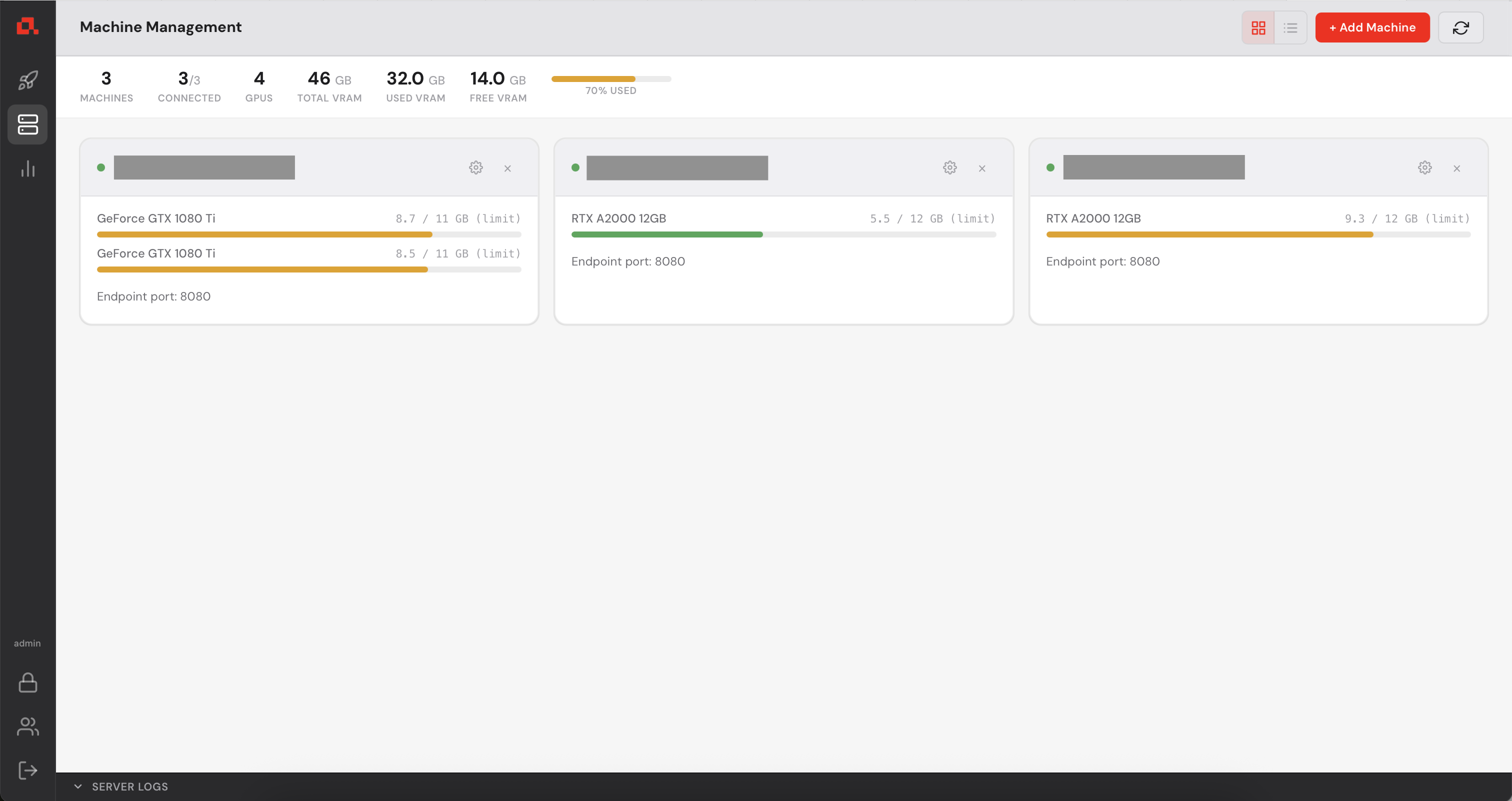
After adding your machines, they appear on the Machine view as follows (in the following screenshot, the IP addresses have been anonymized).
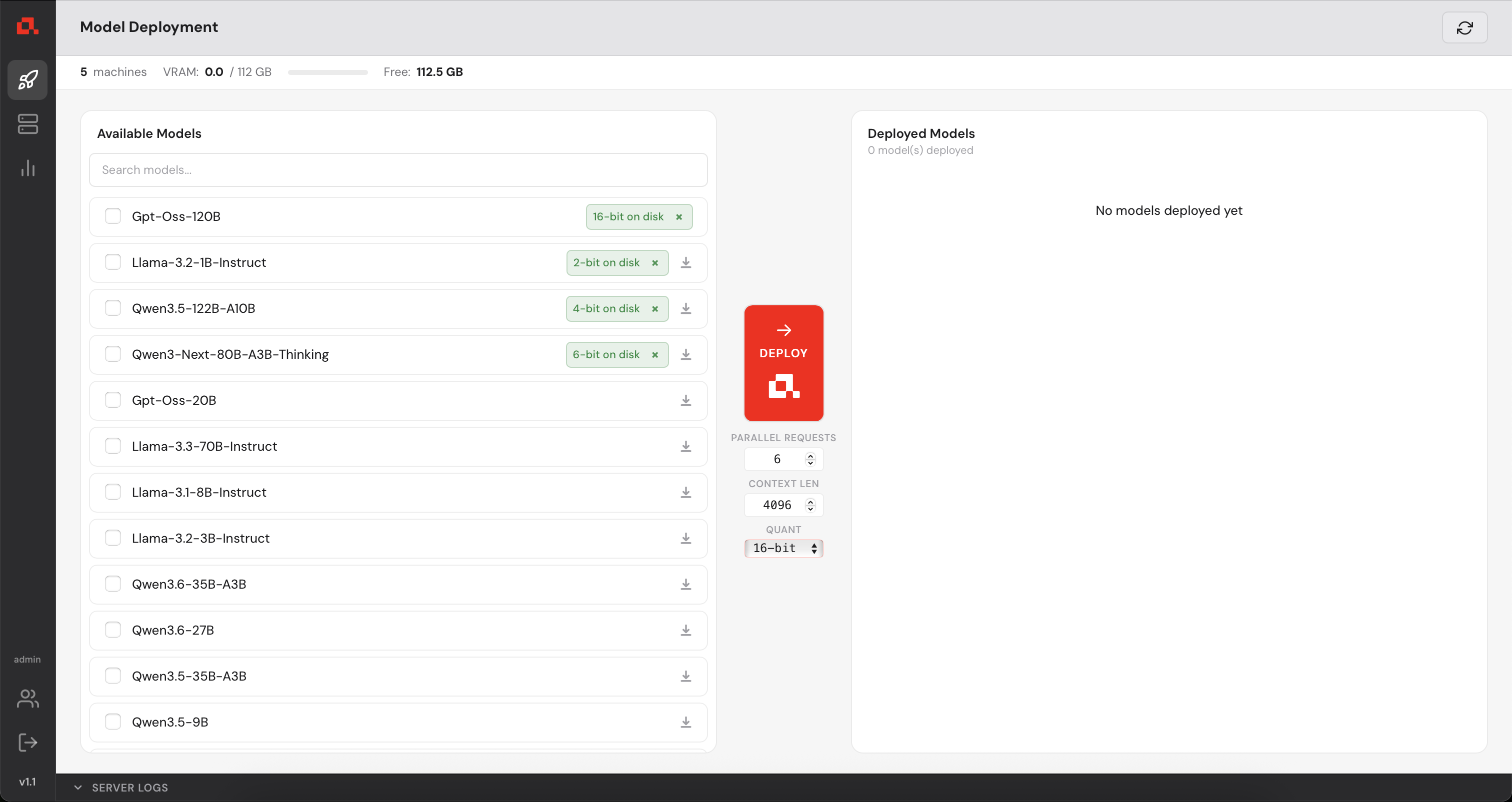
 in the left sidebar, select the model to deploy in the list and click on the deploy button
  .
.
The model is deploying....
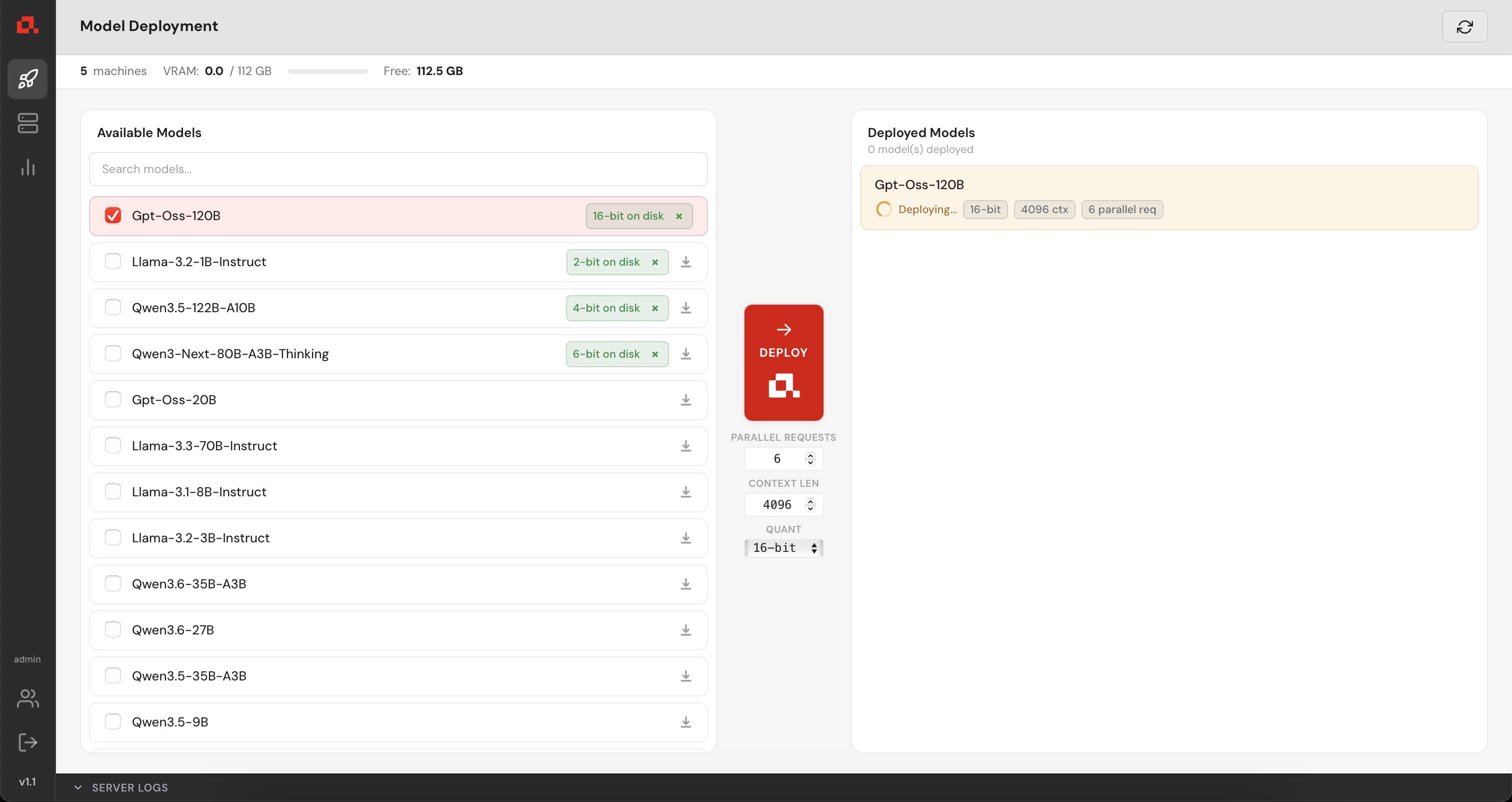
Then, deployed and loading the model weights.
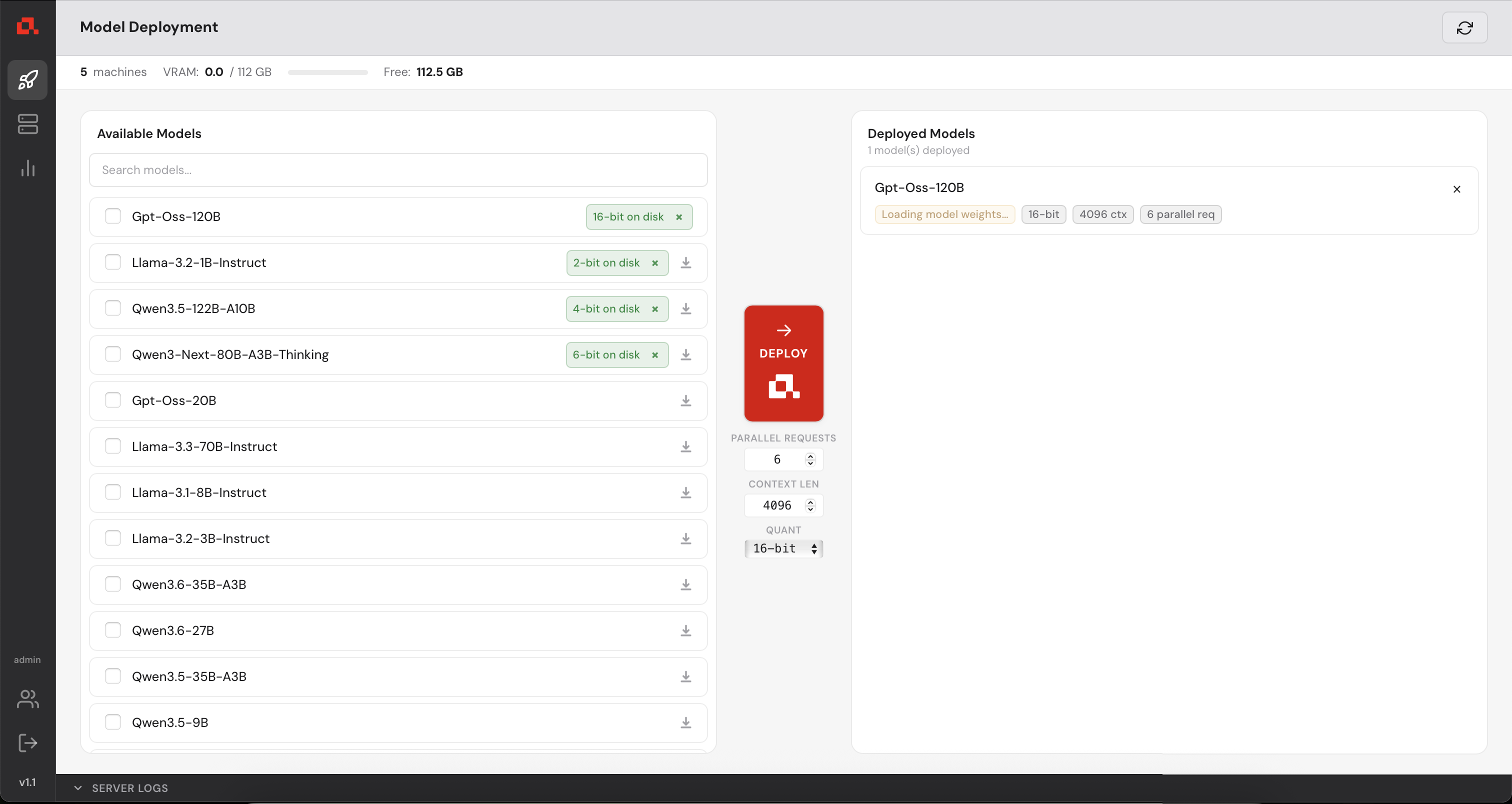
And finally, operational.
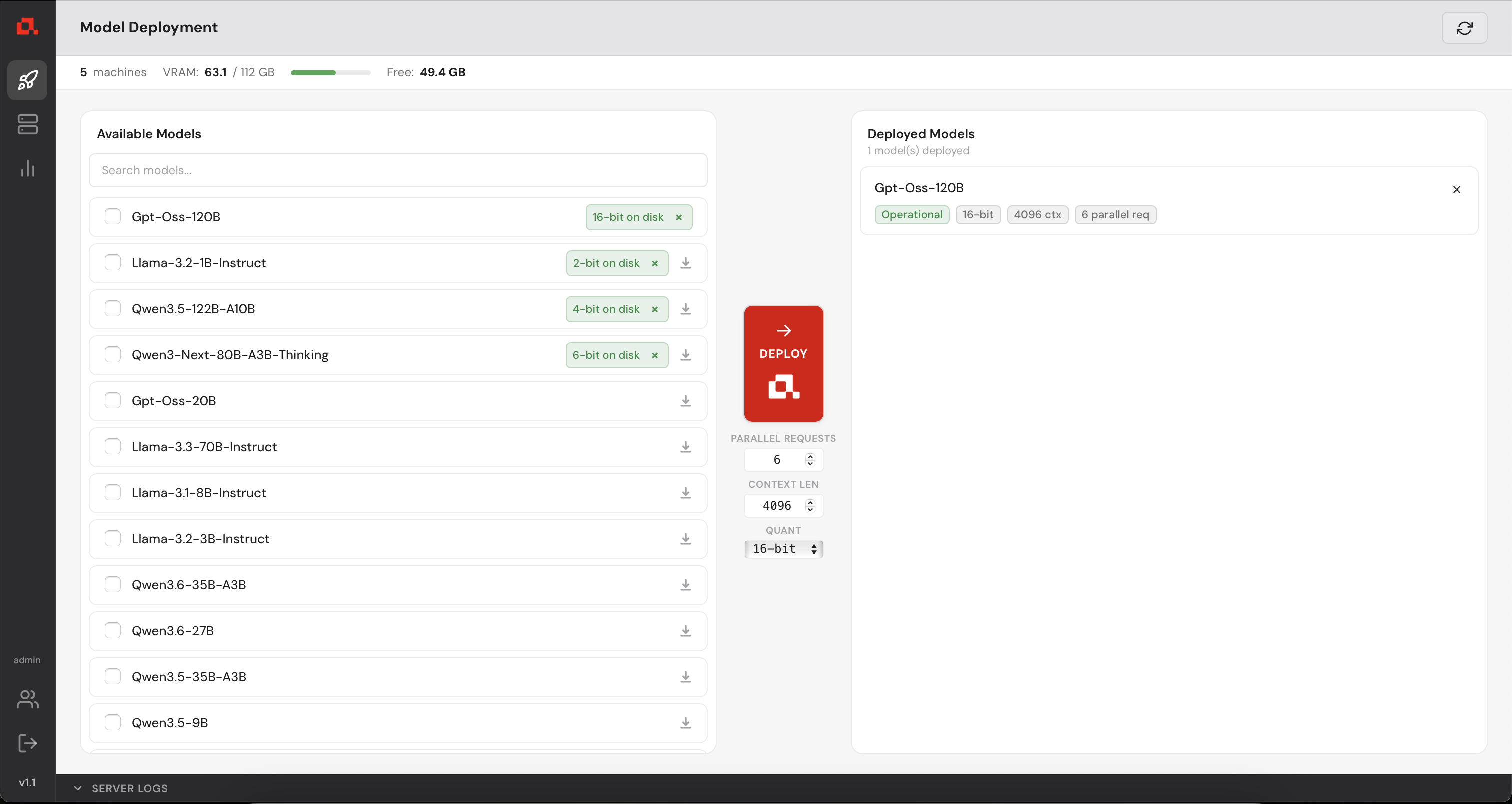
In the Machine Panel, you can see the model being distributed over the machines.
 appears. If it is not already downloaded, you can click on the download icon
  to download without deploying the model and a mark icon
  will appear. If you try to deploy a model that isn't downloaded already, it will be downloaded automatically before deploying. You can click on the cross on downloaded model or downloading model to remove the downloaded (respectively downloading files) from the disk.
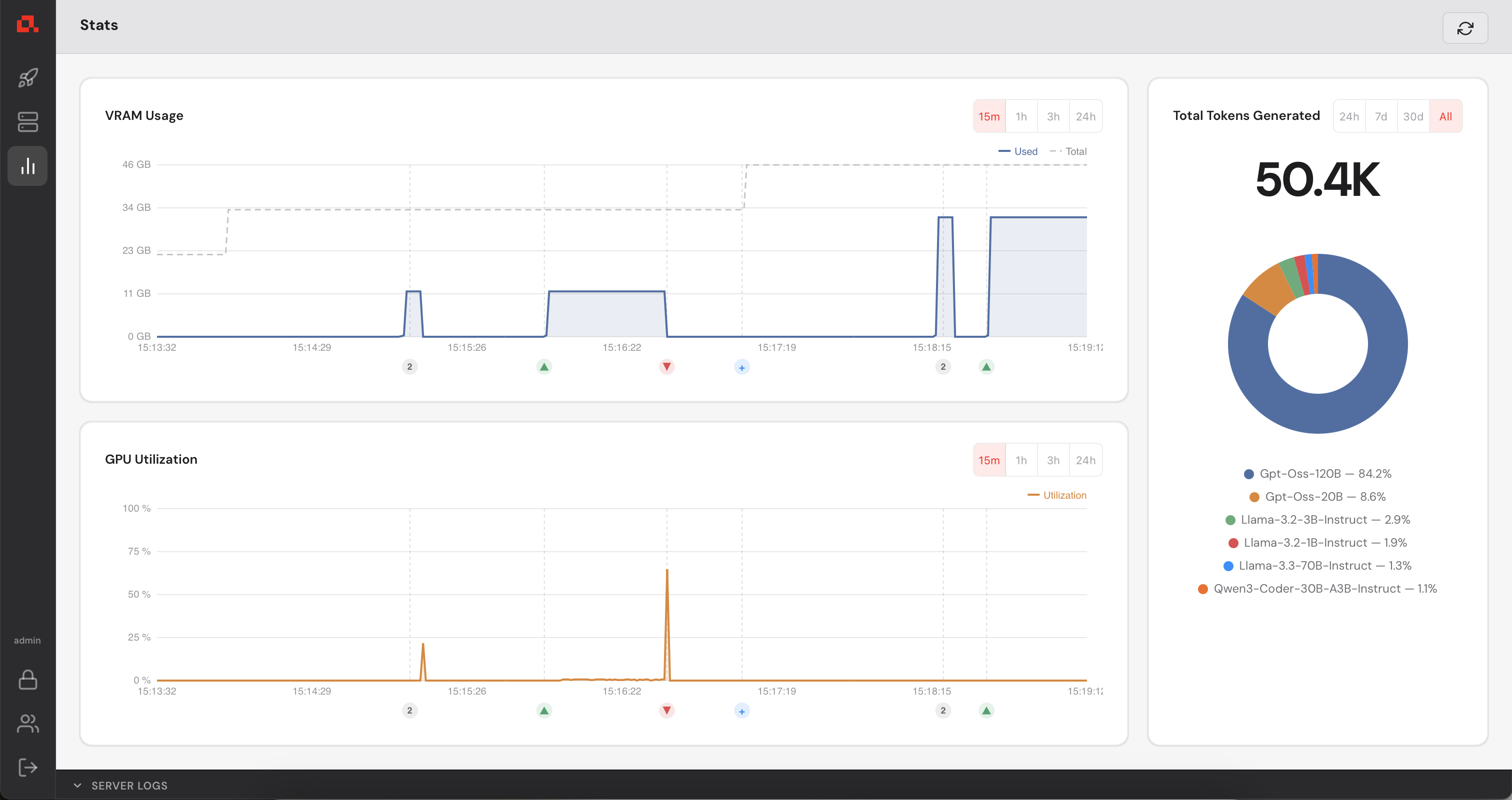
Your Control Manager continuously collects GPU metrics from every registered machine (updated every second). You can view live and historical data from the Statistics panel.
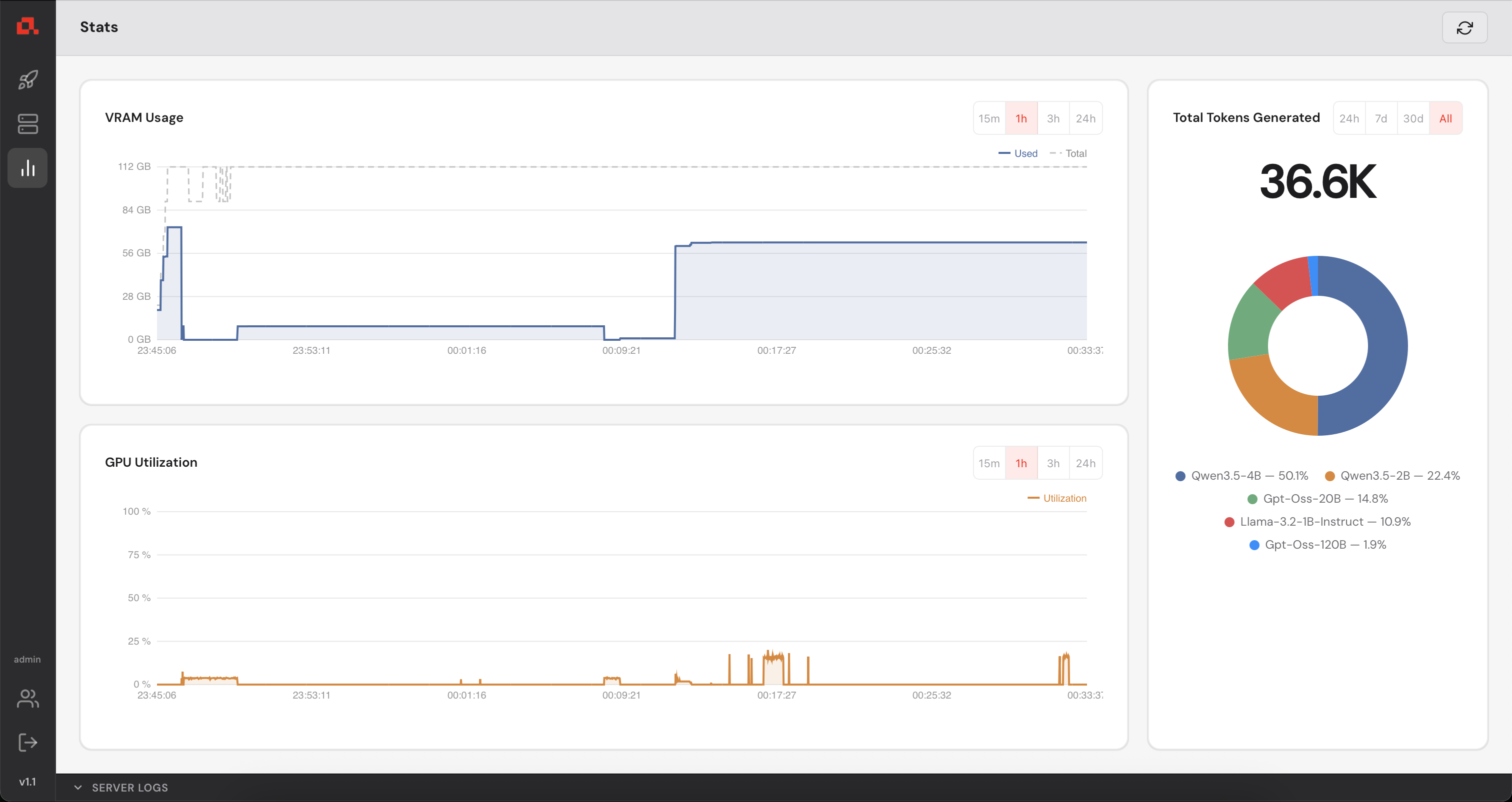
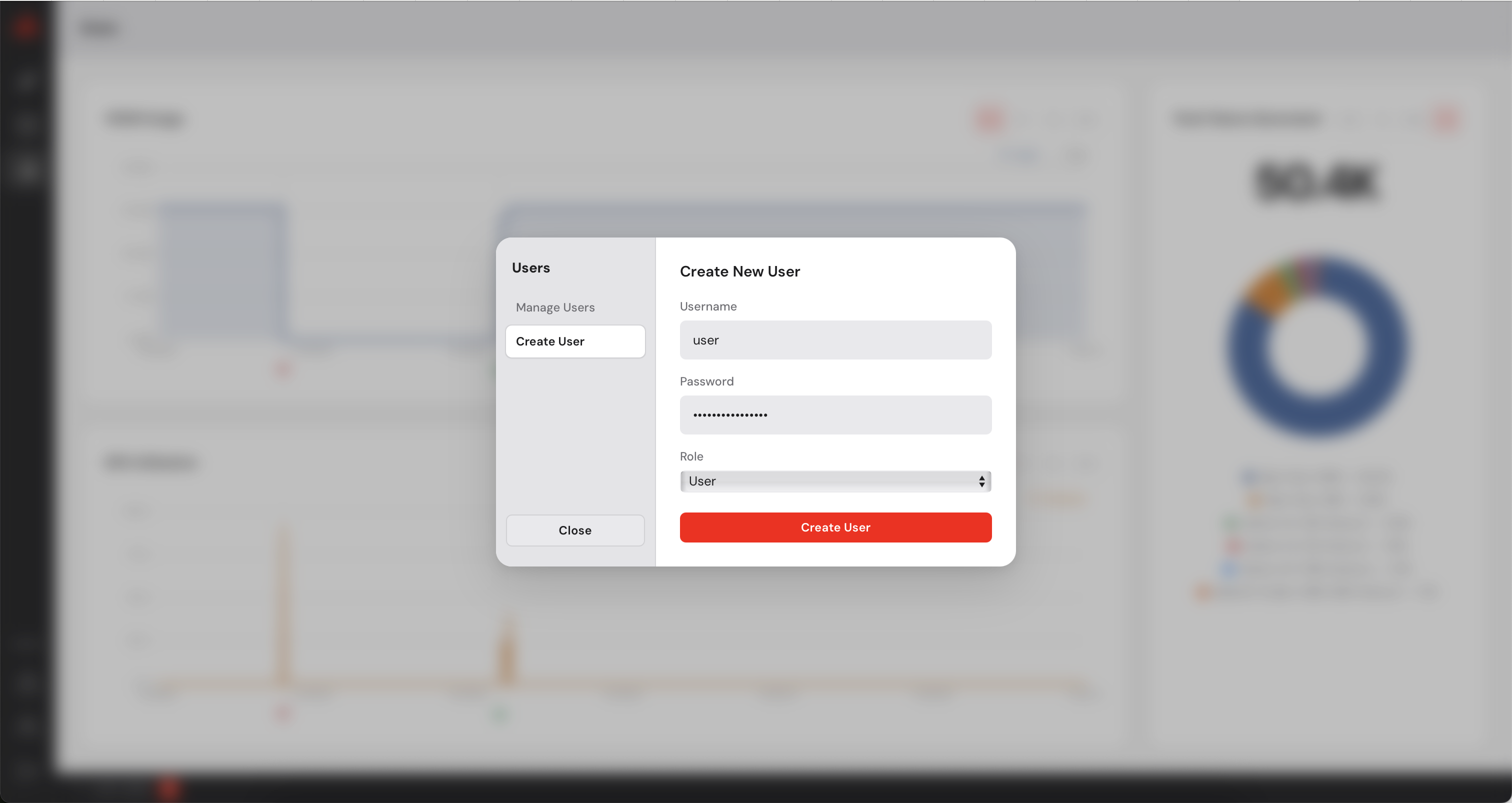
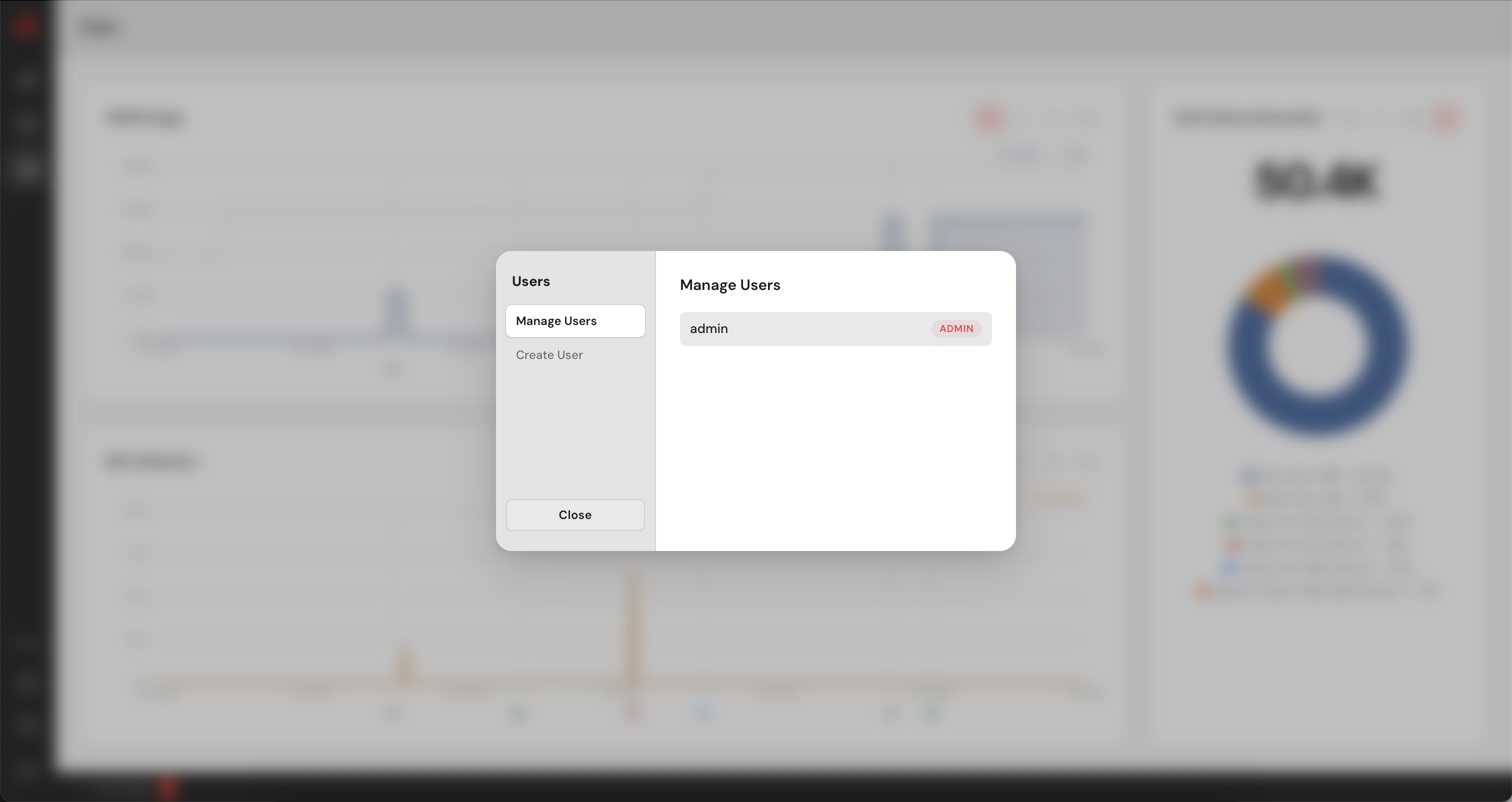
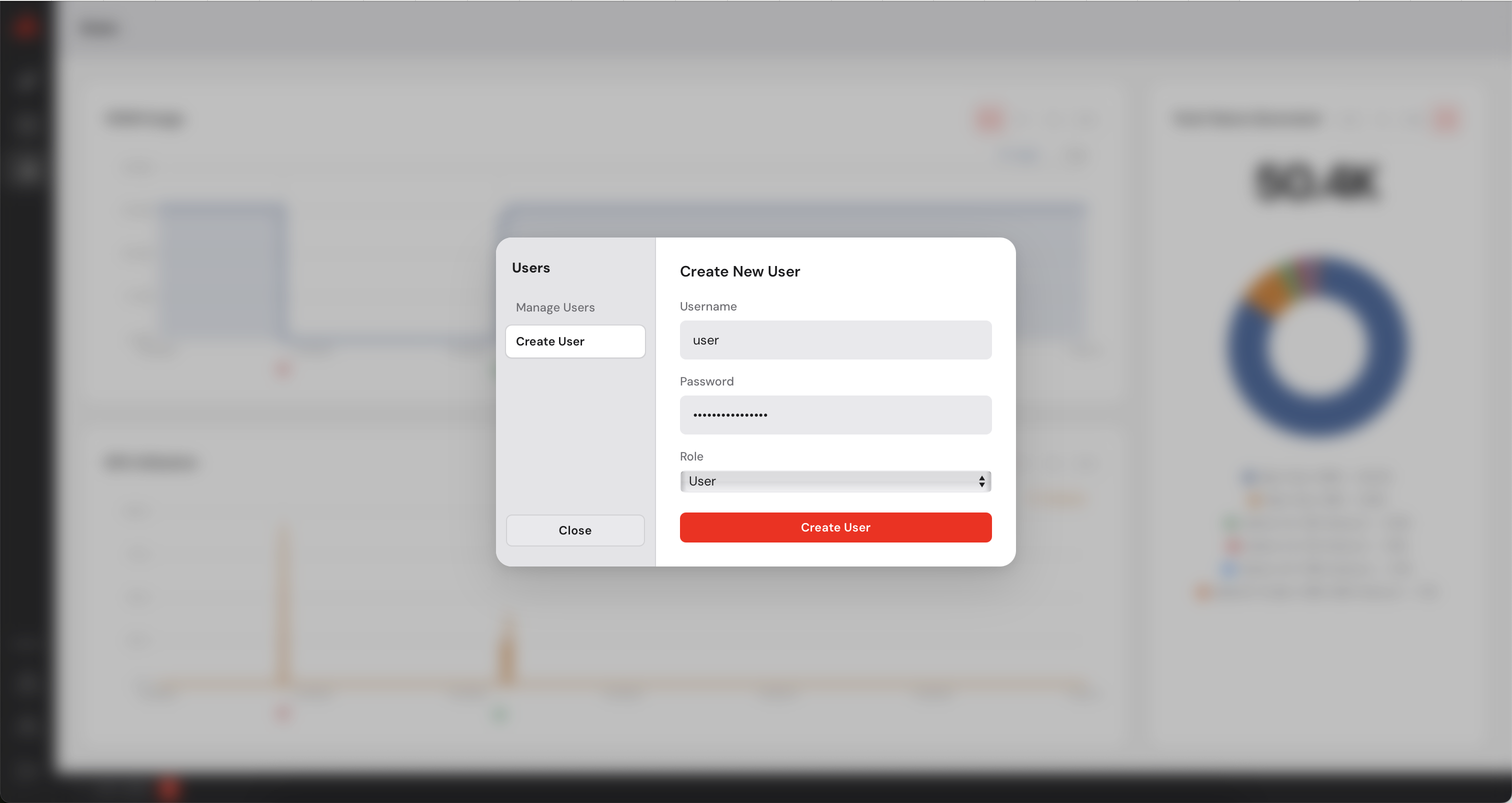
The Control Manager has a built-in user management system. As an administrator you can create additional accounts for colleagues who need access to the dashboard. You can create users with admin privileges or simple users who will not be able to add or remove machines. Simple users can deploy models on the available machines.
 at the bottom of the sidebar.

Updating Anyway uses the same installer as a fresh install. Run the command below, then
restart anyd and any-cm:
curl -sSL https://www.anyway.dev/install.sh | sh
Email: contact@anyway.dev
Documentation: Additional resources and advanced configuration options available upon request.
Run the following command:
curl -sSL https://www.anyway.dev/install.sh | shanyd and any-cm are placed in .local/bin/anyway.
To check the version:
anyd --version
any-cm --version
Anyway daemon (anyd) must be running on every GPU machine you want to manage. To do so, you just need to run the following command:
anyd [--port=9100]--port flag. Once running, it will accept
commands from the Control Manager.
Anyway Control Manager (any-cm) can run on a machine with or without GPU.
It serves a browser-based User Interface that you use to manage your machine cluster.
any-cm [--port=3000]--port flag. The dashboard is accessible from any browser at
http://<control-manager-ip>:3000.
The Control Manager (any-cm) communicates with each Anyway process (anyd) running on your machines.
admin and a random admin password is
generated and printed to the console. Copy it before closing the terminal, you will need it to log in. You will be prompted to change it immediately after your first login.
Open your browser and navigate to http://<control-manager-ip>:3000.
You will be greeted by the login screen.
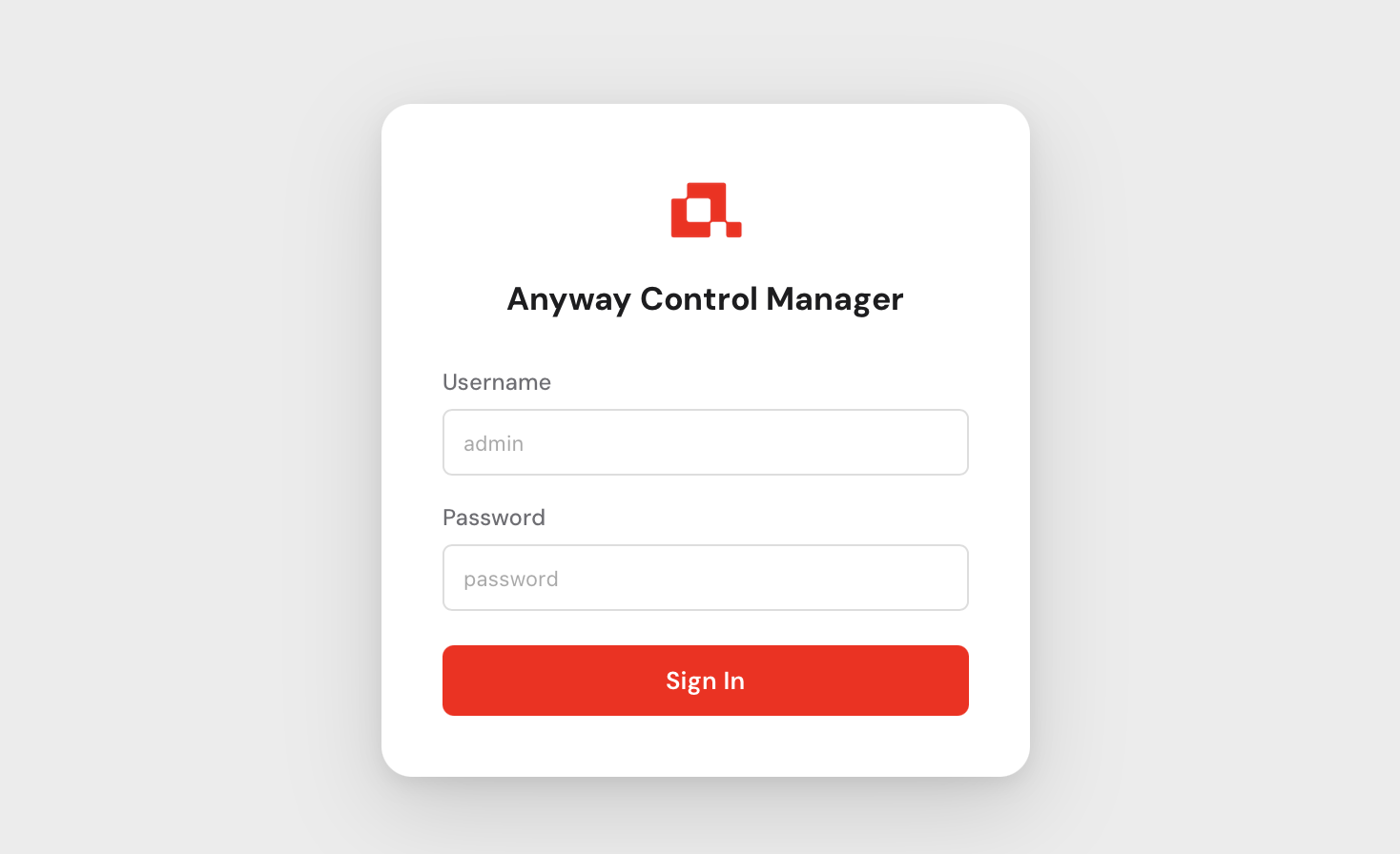
Use admin as the username and the password that was printed to the console
when you first started any-cm. After logging in you will be asked to set a new
permanent password.
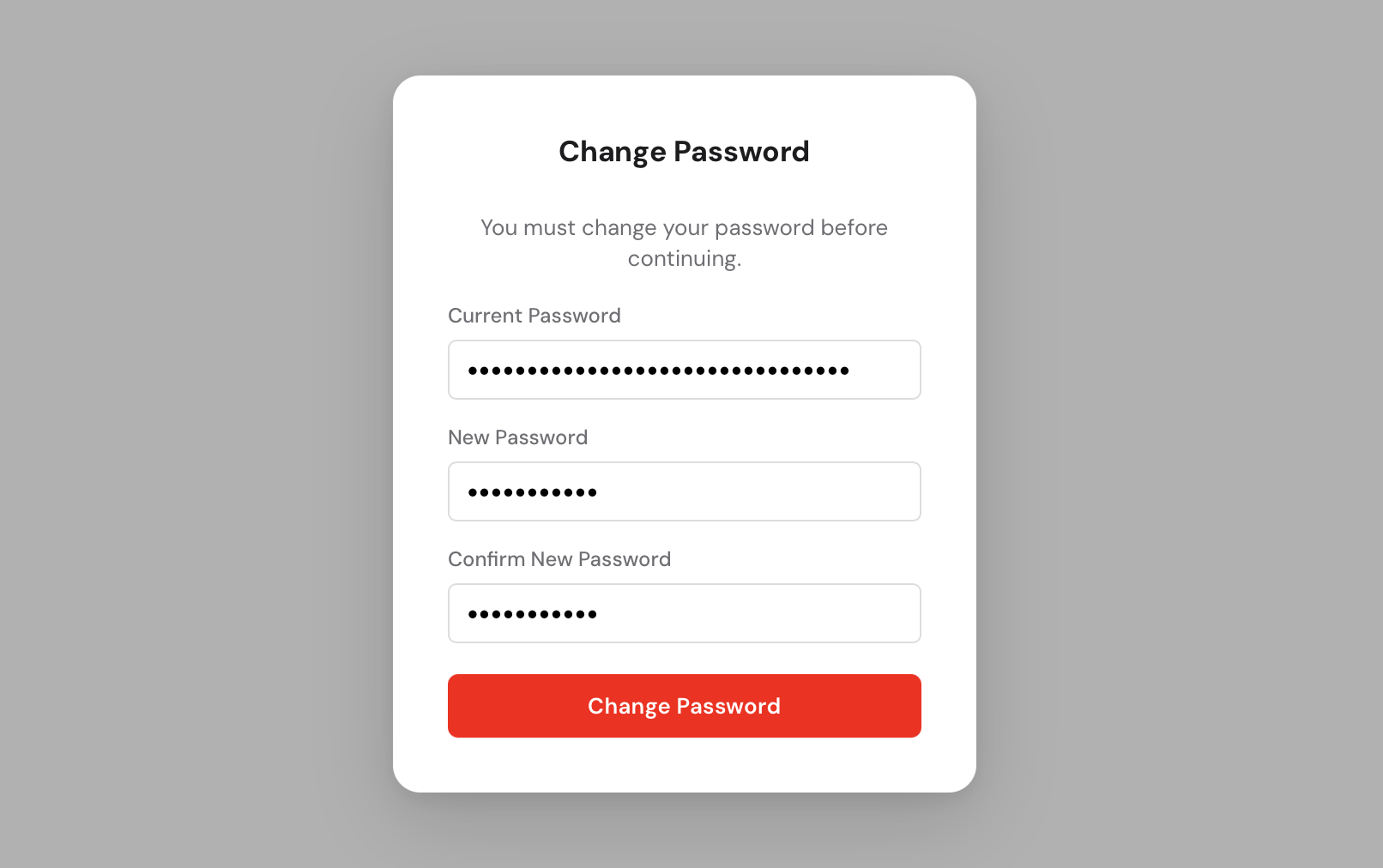
You now have access to the Control Manager.
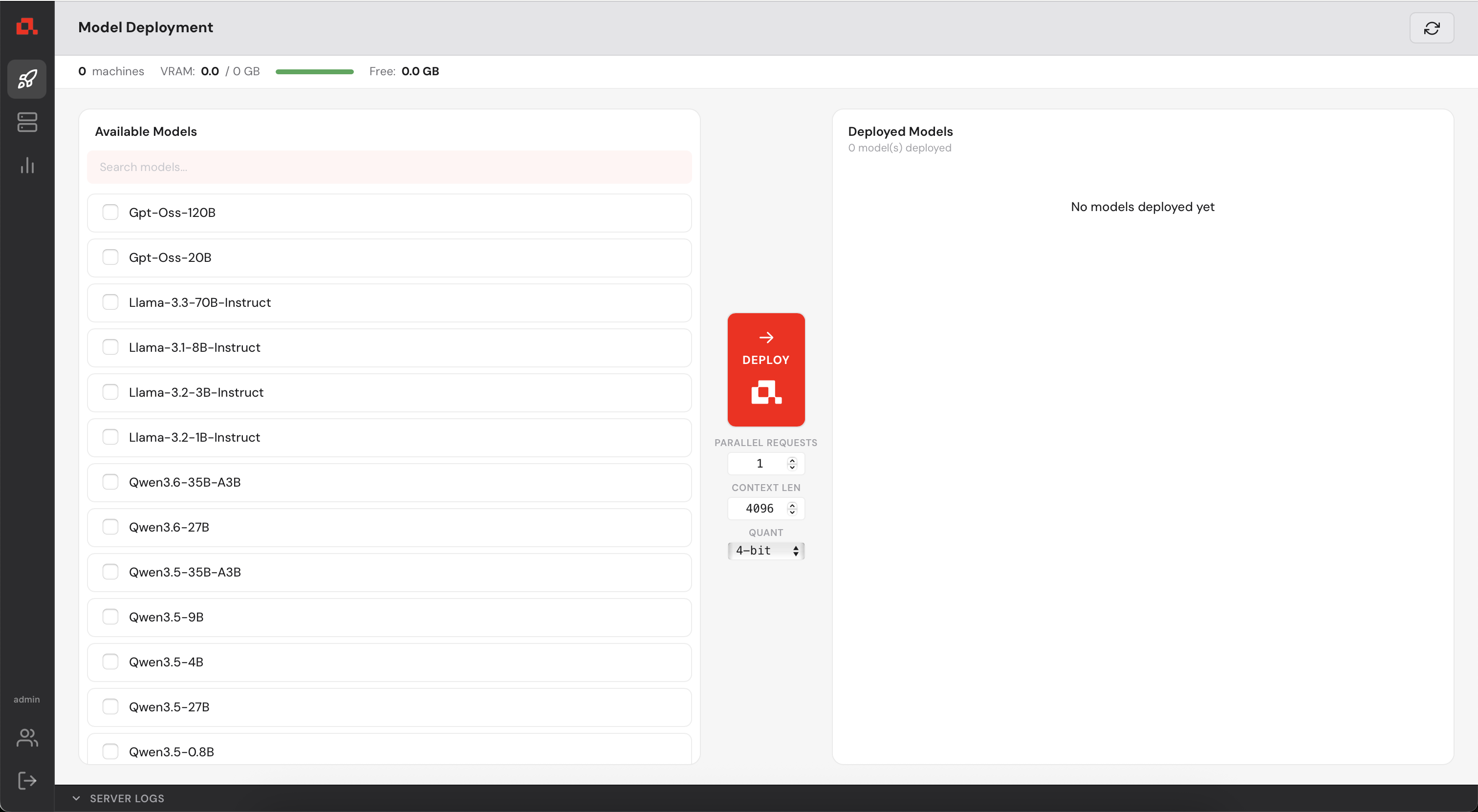
Before deploying any model, you need to register your GPU machines with the Control Manager.
Each machine must be running anyd (see step 2).
 in the left sidebar, then click on
  in the top right corner.
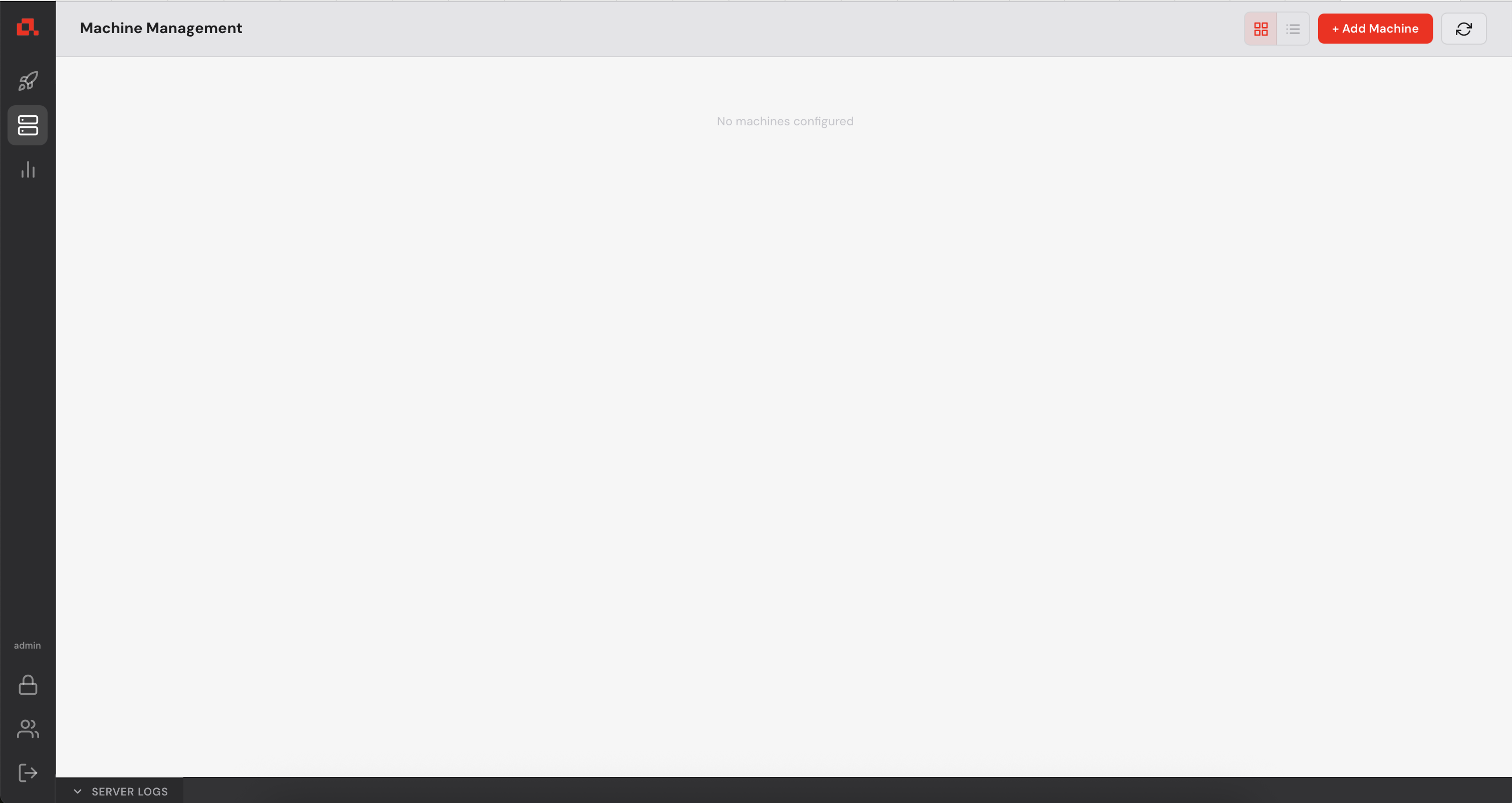
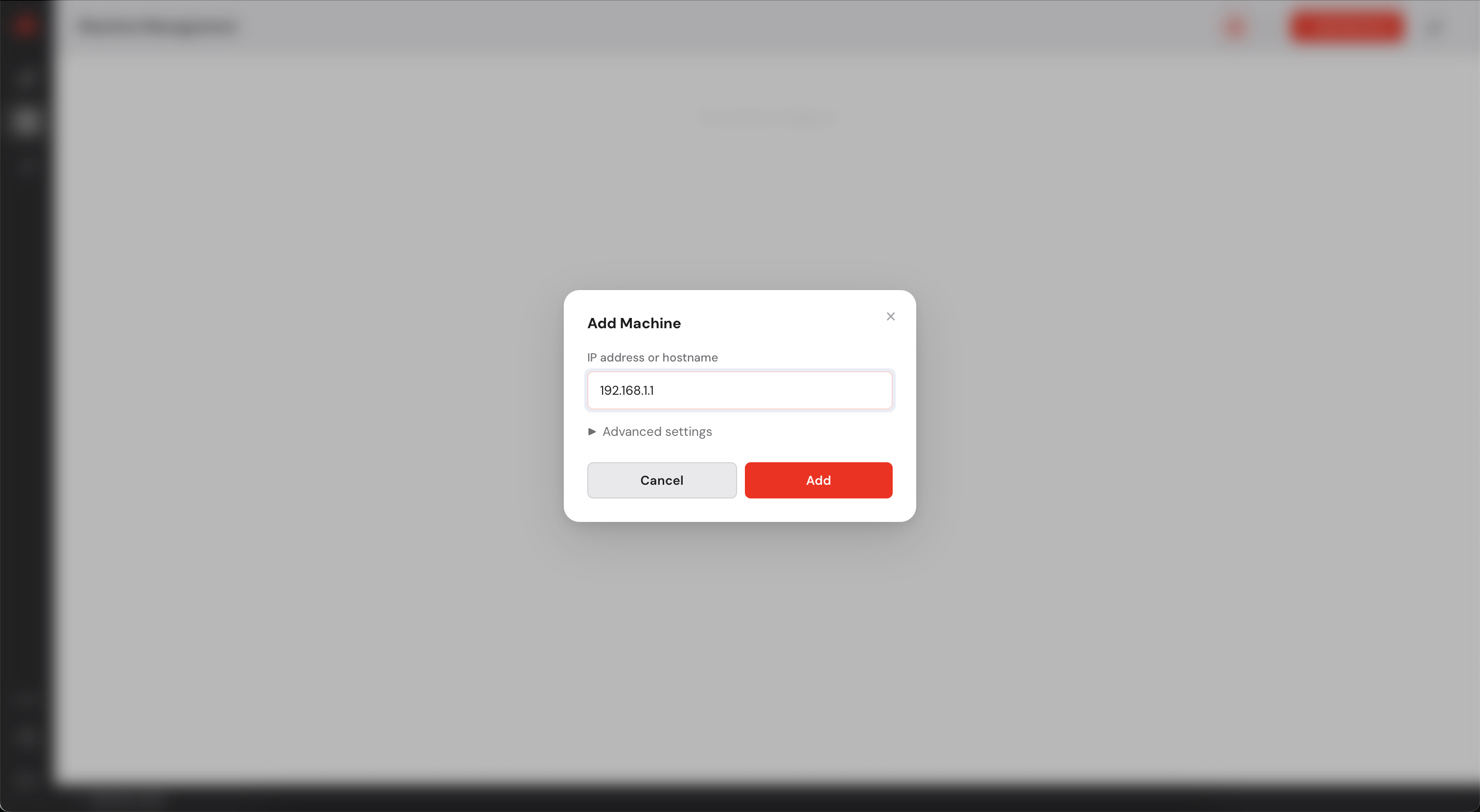
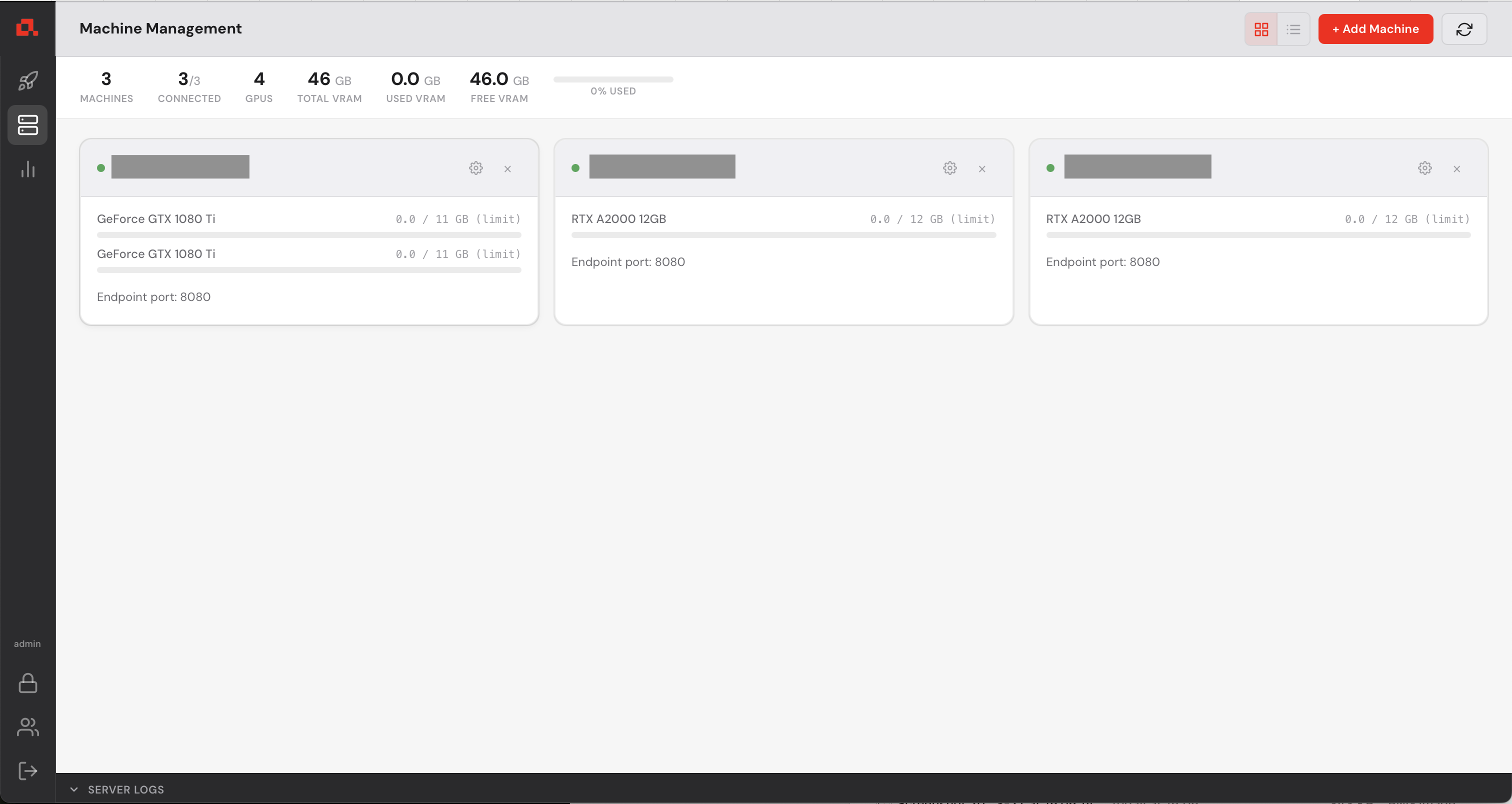
After adding your machines, they appear on the Machine view as follows (in the following screenshot, the IP addresses have been anonymized).
 in the left sidebar, select the model to deploy in the list and click on the deploy button
  .
.
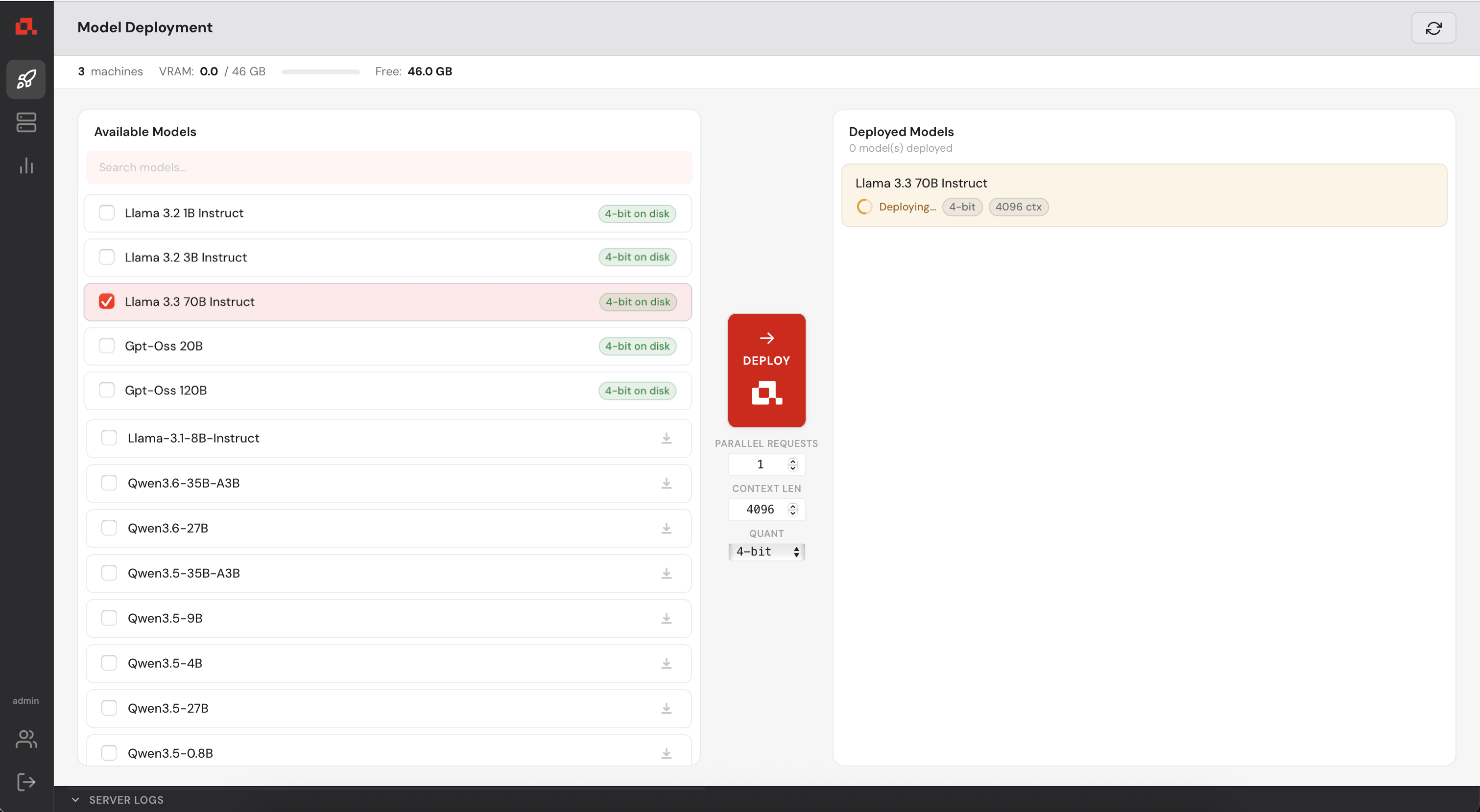
The model is deploying....
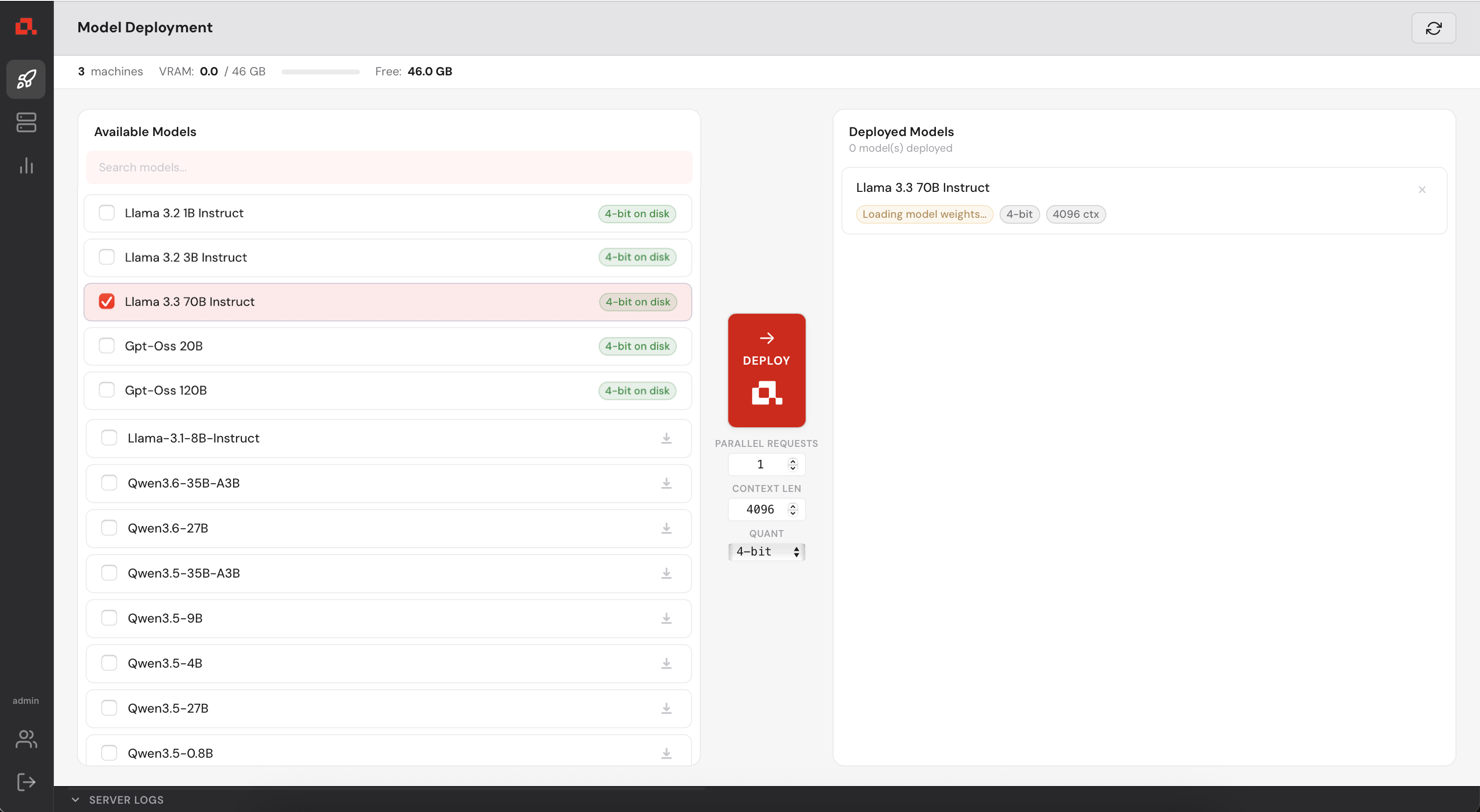
Then, deployed.
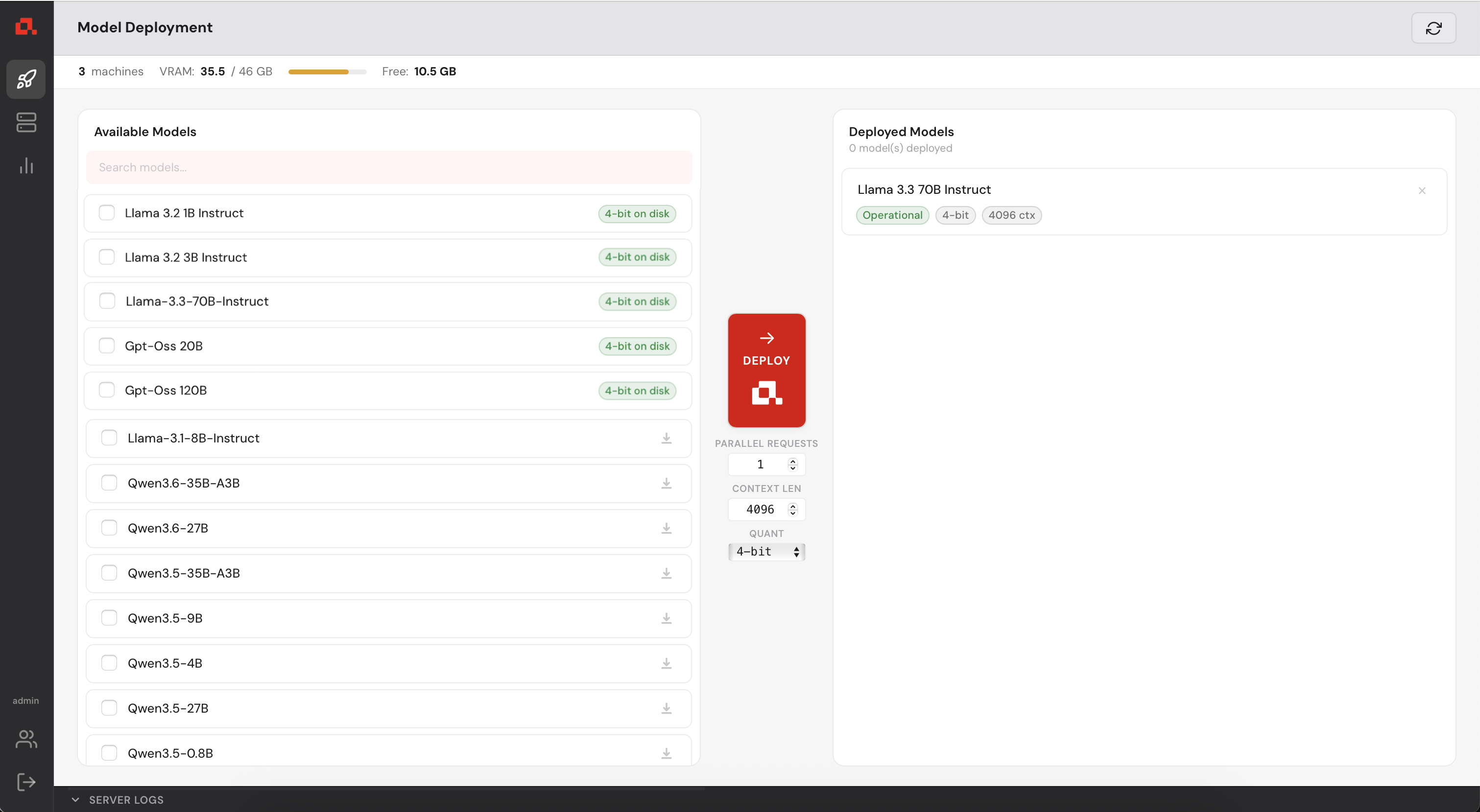
In the Machine Panel, you can see the model being distributed over the machines.
 appears with the quantization level of the model. If it is not already downloaded, you can click on the download icon
  to download without deploying the model. If you try to deploy a model that isn't downloaded already, it will be downloaded automatically before deploying.
Your Control Manager continuously collects GPU metrics from every registered machine (updated every second). You can view live and historical data from the Statistics panel.
The Control Manager has a built-in user management system. As an administrator you can create additional accounts for colleagues who need access to the dashboard. You can create users with admin privileges or simple users who will not be able to add or remove machines. Simple users can deploy models on the available machines.
 at the bottom of the sidebar.
Updating Anyway uses the same installer as a fresh install. Run the command below, then
restart anyd and any-cm:
curl -sSL https://www.anyway.dev/install.sh | sh
Email: contact@anyway.dev
Documentation: Additional resources and advanced configuration options available upon request.
Run the following command:
curl -sSL https://www.anyway.dev/install.sh | shanyd and any-cm are placed in .local/bin/anyway.
To check the version:
anyd --version
any-cm --version
Anyway daemon (anyd) must be running on every GPU machine you want to manage. To do so, you just need to run the following command:
anyd [--port=9100]--port flag. Once running, it will accept
commands from the Control Manager.
Anyway Control Manager (any-cm) can run on a machine with or without GPU.
It serves a browser-based User Interface that you use to manage your machine cluster.
any-cm [--port=3000]--port flag. The dashboard is accessible from any browser at
http://<control-manager-ip>:3000.
The Control Manager (any-cm) communicates with each Anyway process (anyd) running on your machines.
admin and a random admin password is
generated and printed to the console. Copy it before closing the terminal, you will need it to log in. You will be prompted to change it immediately after your first login.
Open your browser and navigate to http://<control-manager-ip>:3000.
You will be greeted by the login screen.
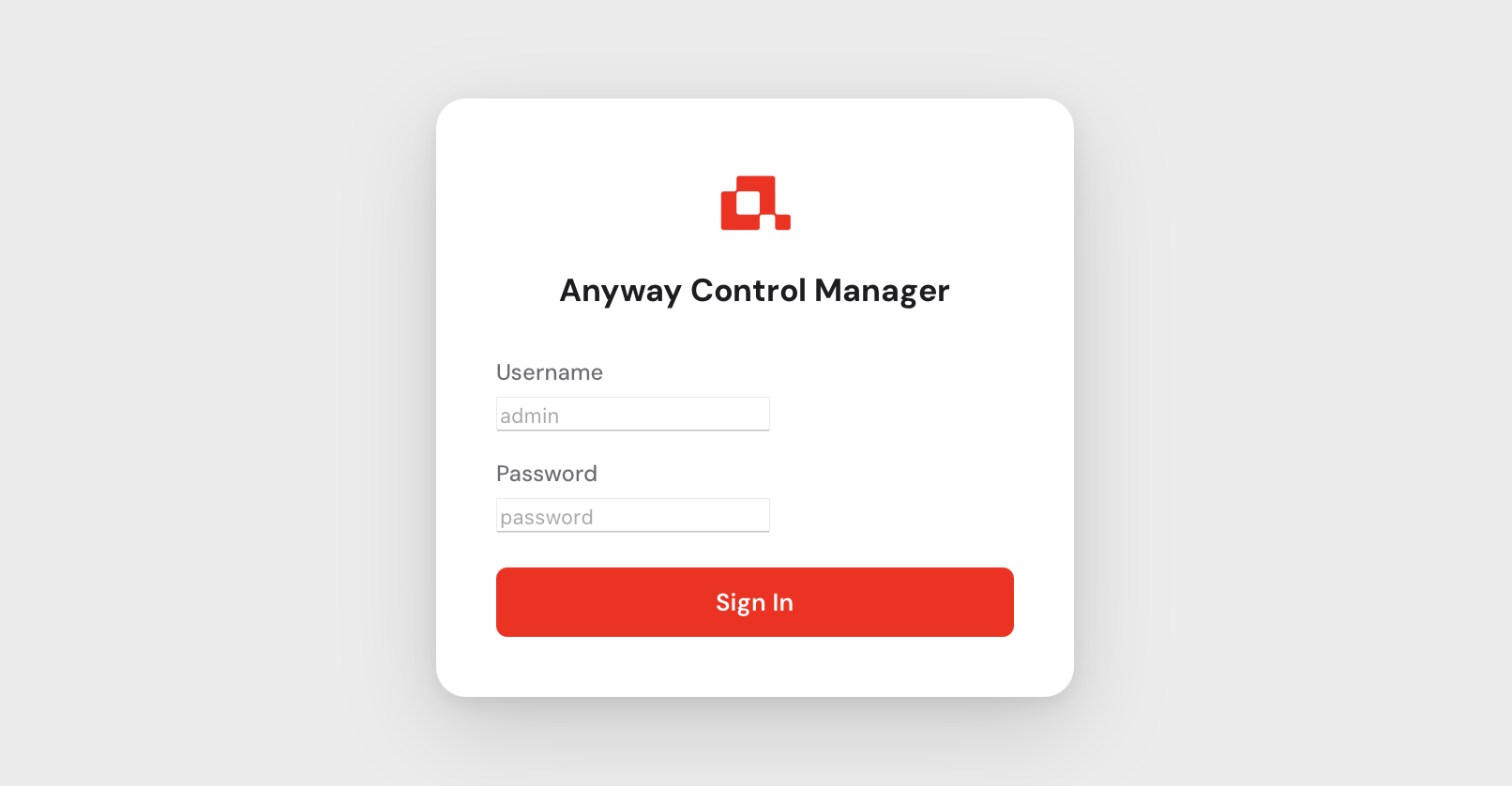
Use admin as the username and the password that was printed to the console
when you first started any-cm. After logging in you will be asked to set a new
permanent password.
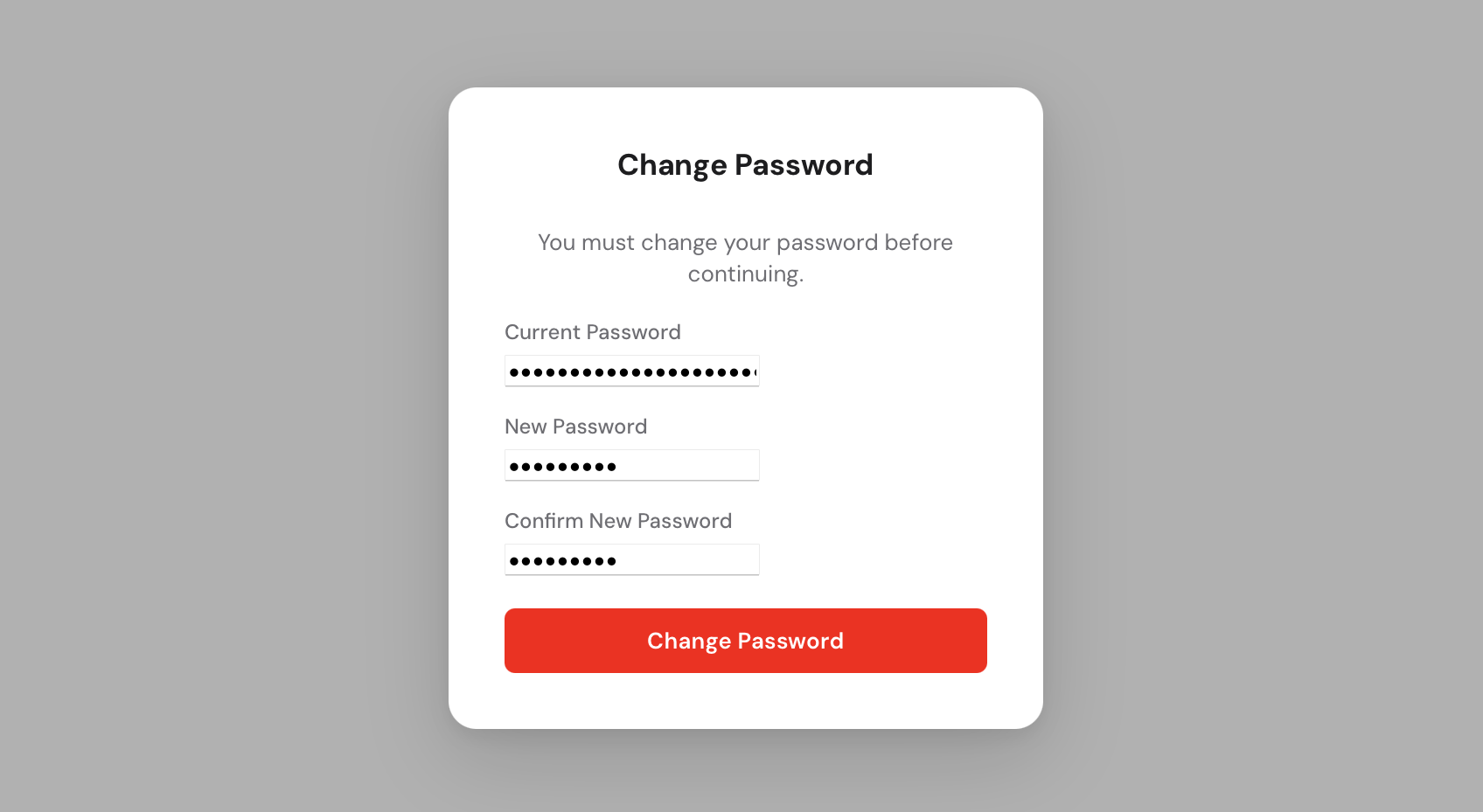
You now have access to the Control Manager.
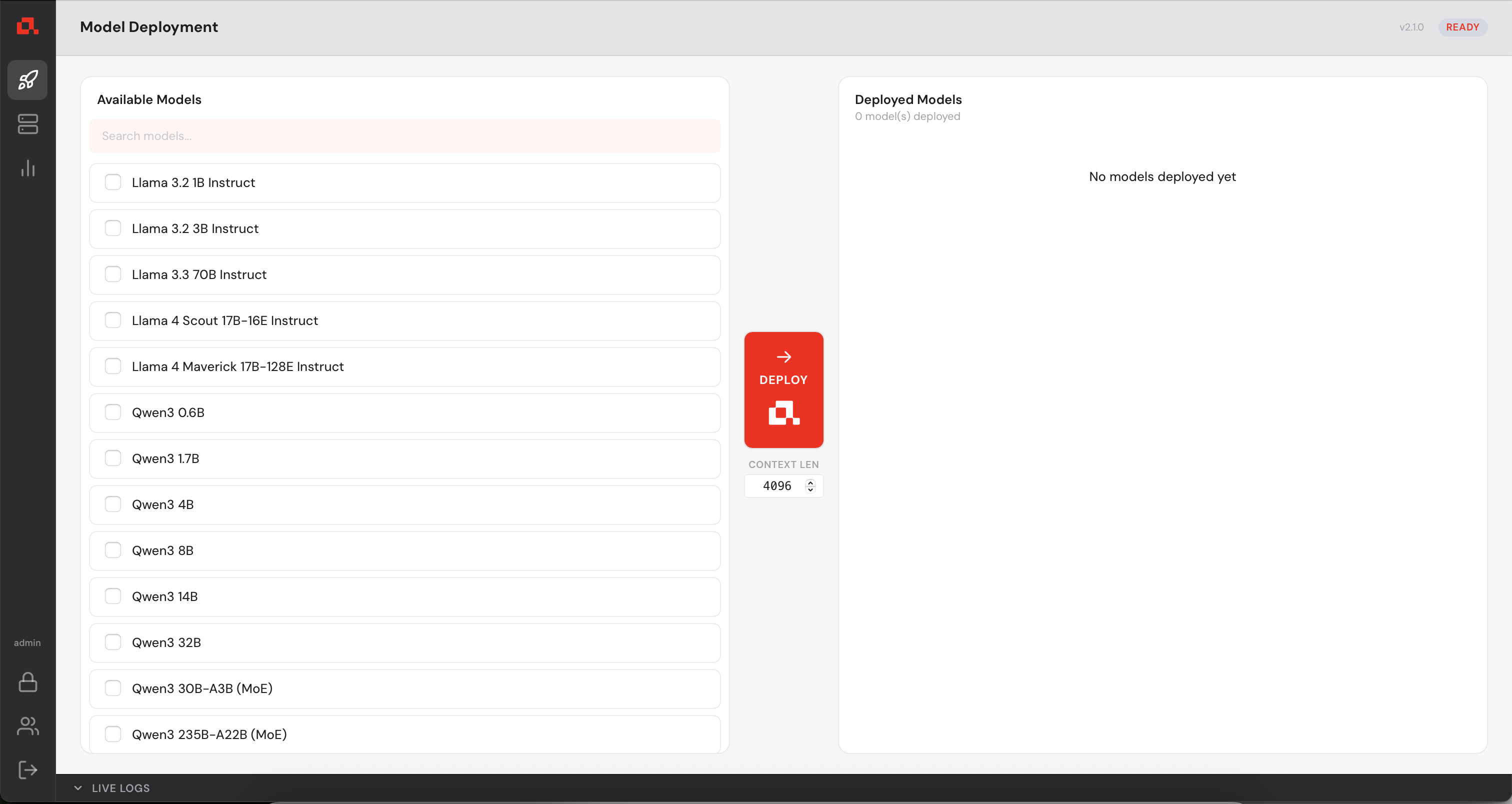
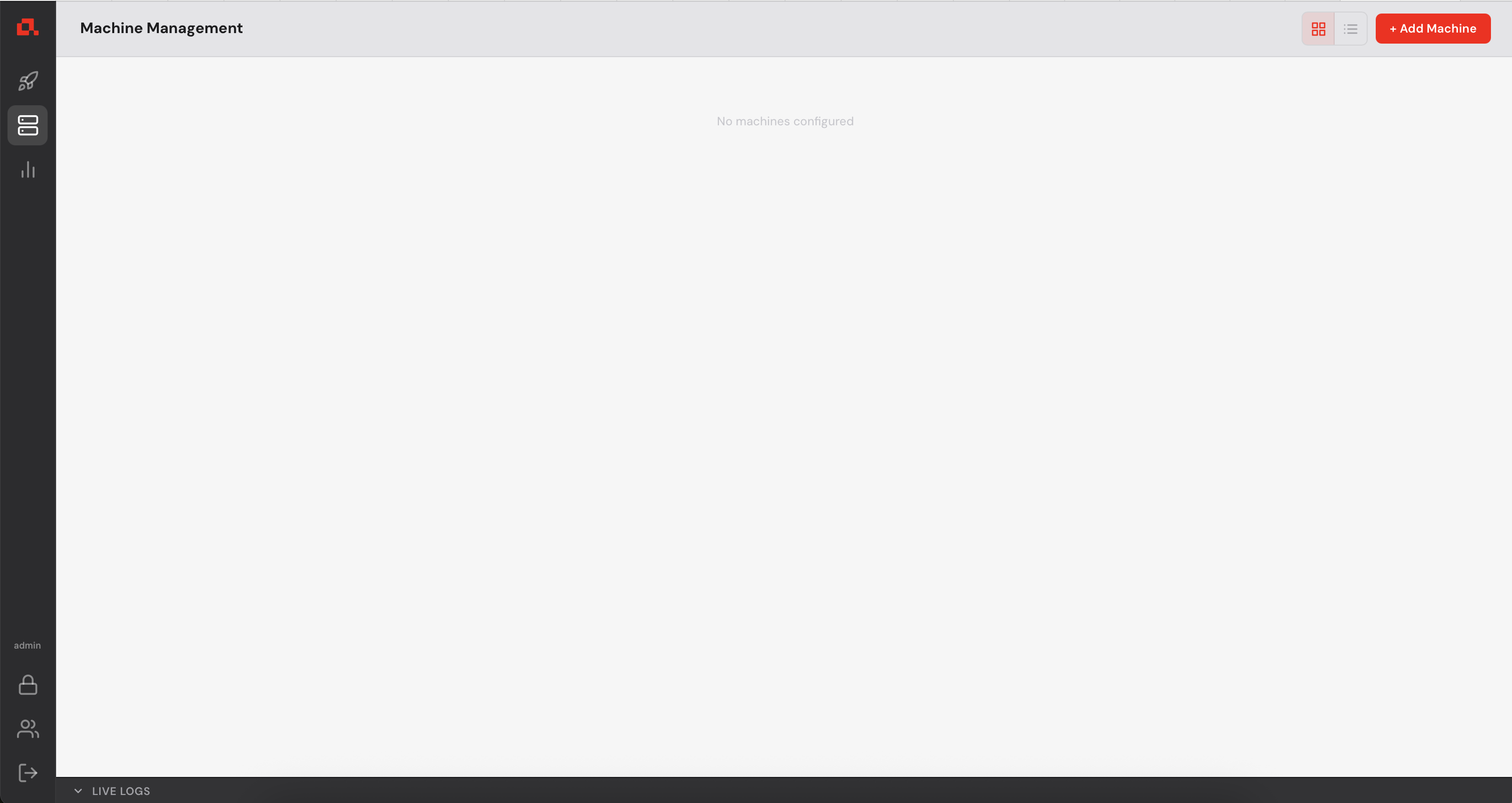
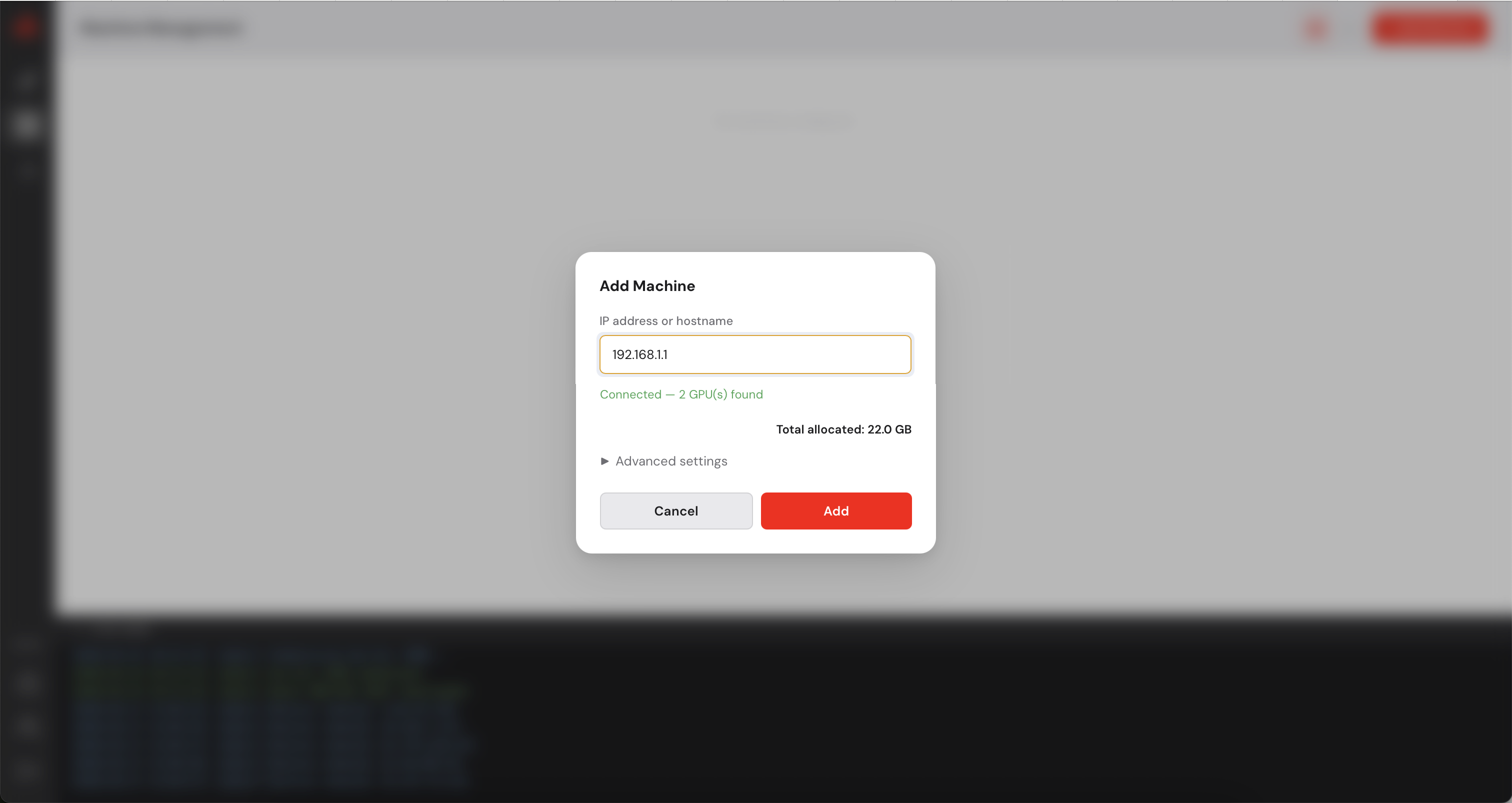
Before deploying any model, you need to register your GPU machines with the Control Manager.
Each machine must be running anyd (see step 2).
 in the left sidebar, then click on
  in the top right corner.
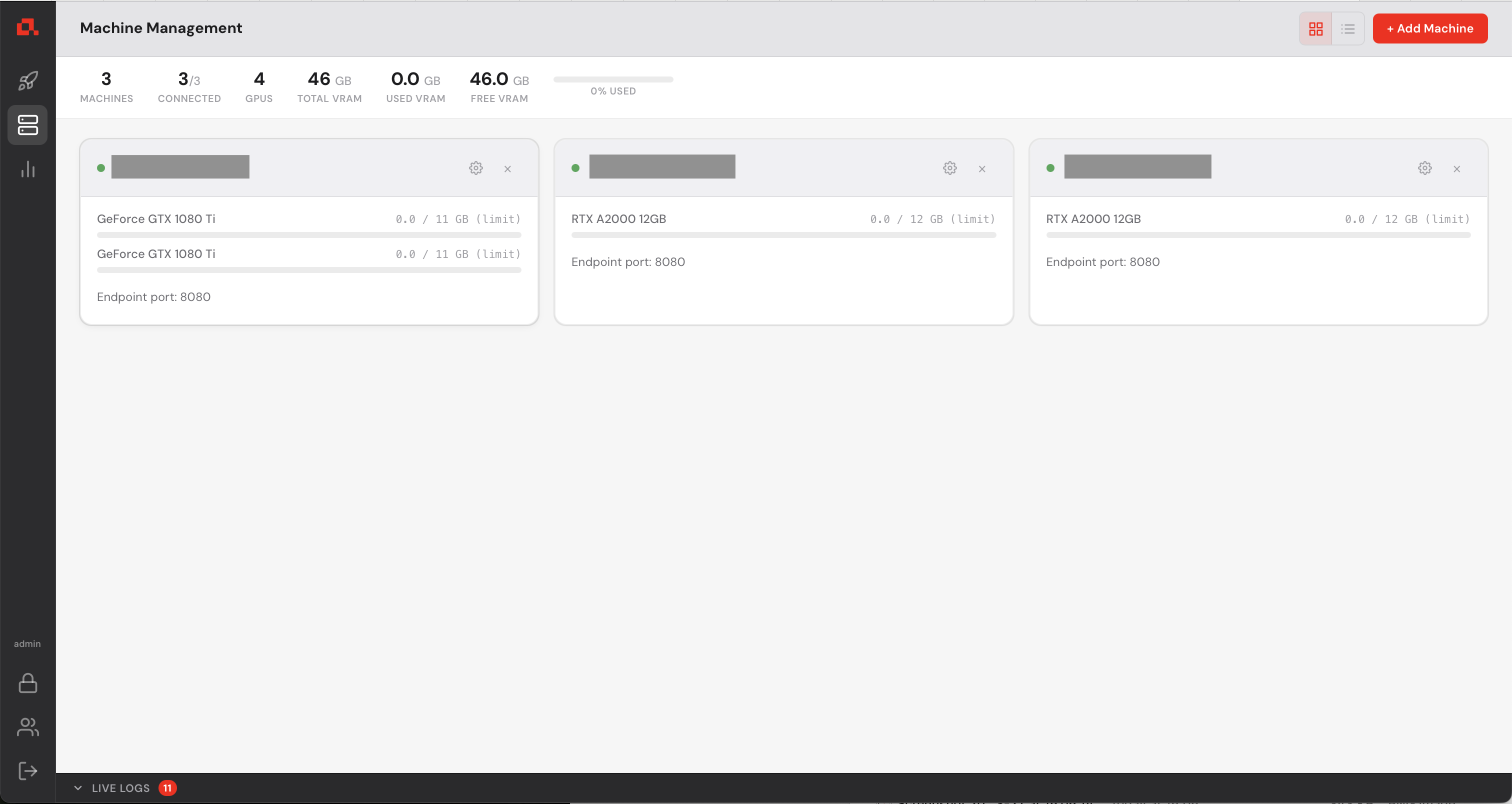
After adding your machines, they appear on the Machine view as follows (in the following screenshot, the IP addresses have been anonymized).
 in the left sidebar, select the model to deploy in the list and click on the deploy button
  .
.

The model is deploying....
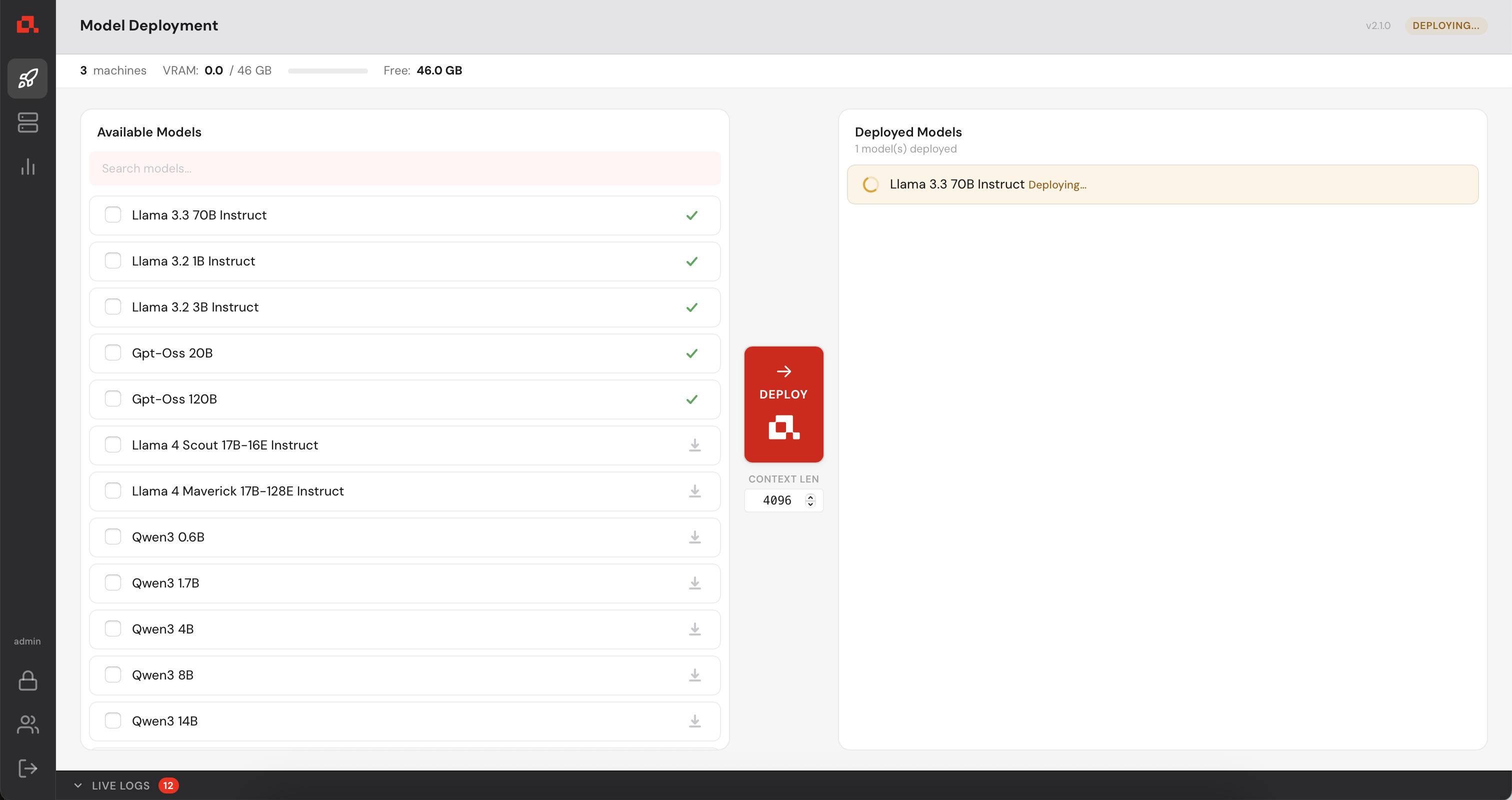
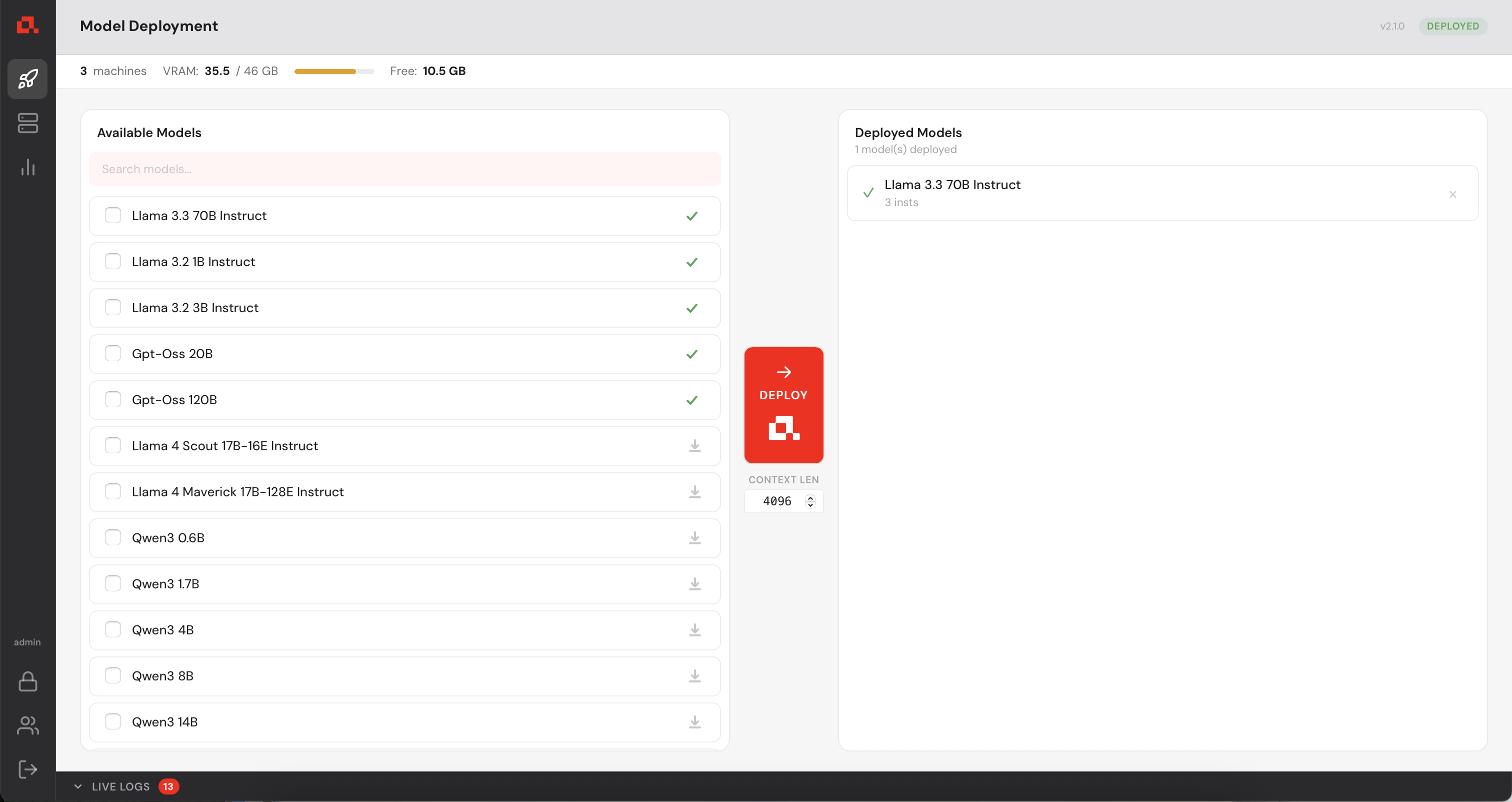
Then, deployed.
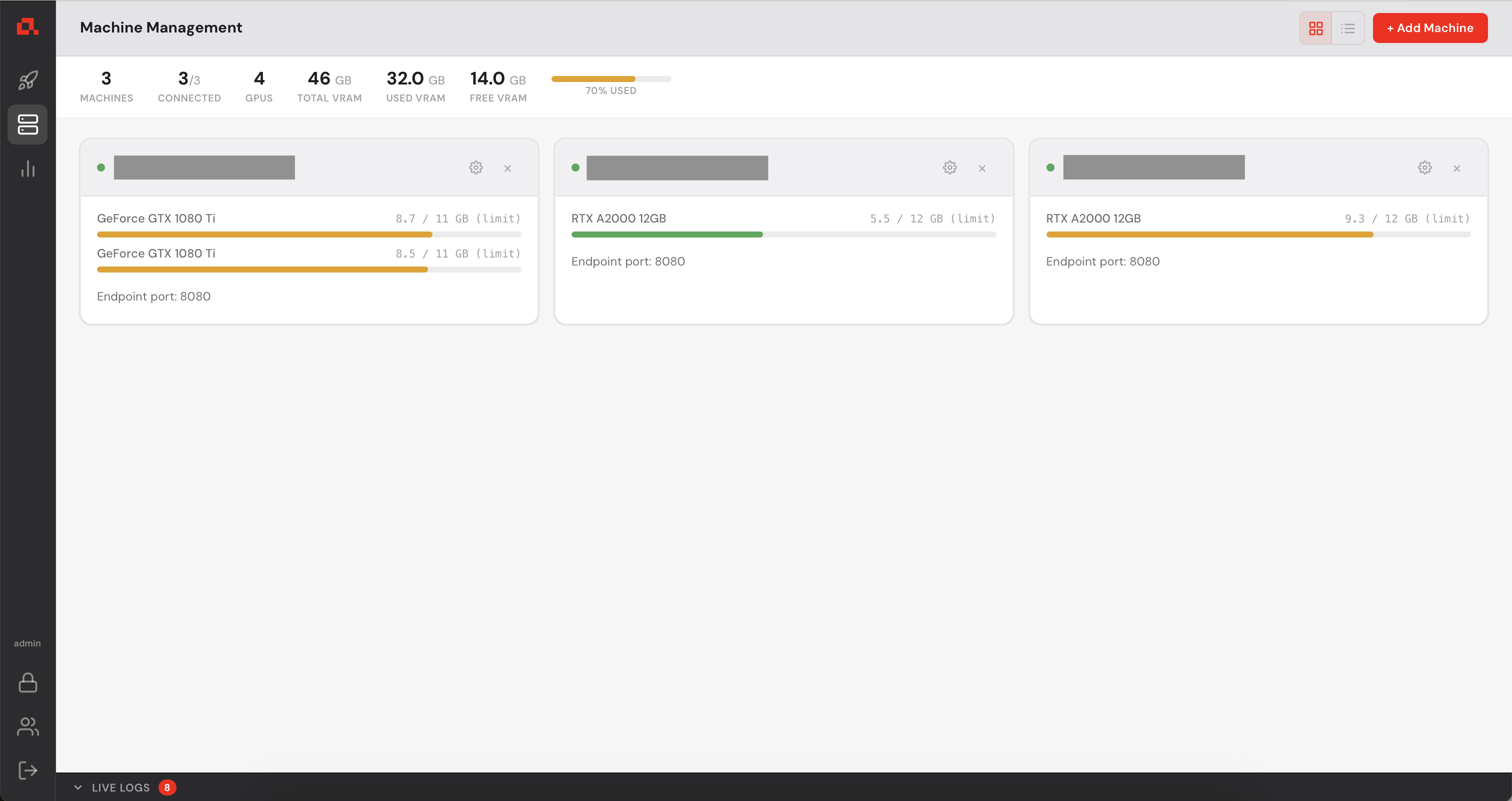
In the Machine Panel, you can see the model being distributed over the machines.
 appears. If it is not already downloaded, you can click on the download icon
  to download without deploying the model. If you try to deploy a model that isn't downloaded already, it will be downloaded automatically before deploying.
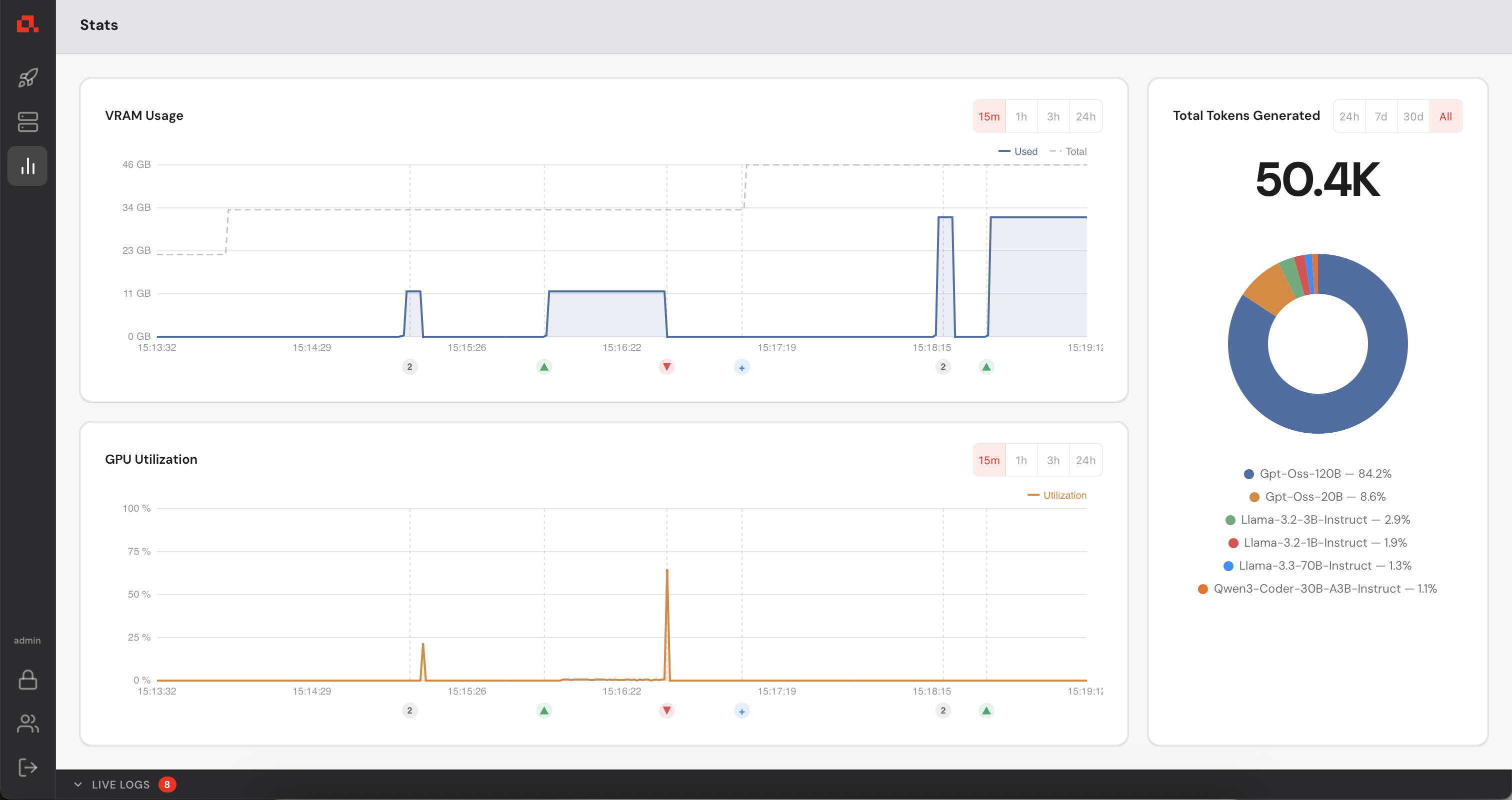
Your Control Manager continuously collects GPU metrics from every registered machine (updated every second). You can view live and historical data from the Statistics panel.
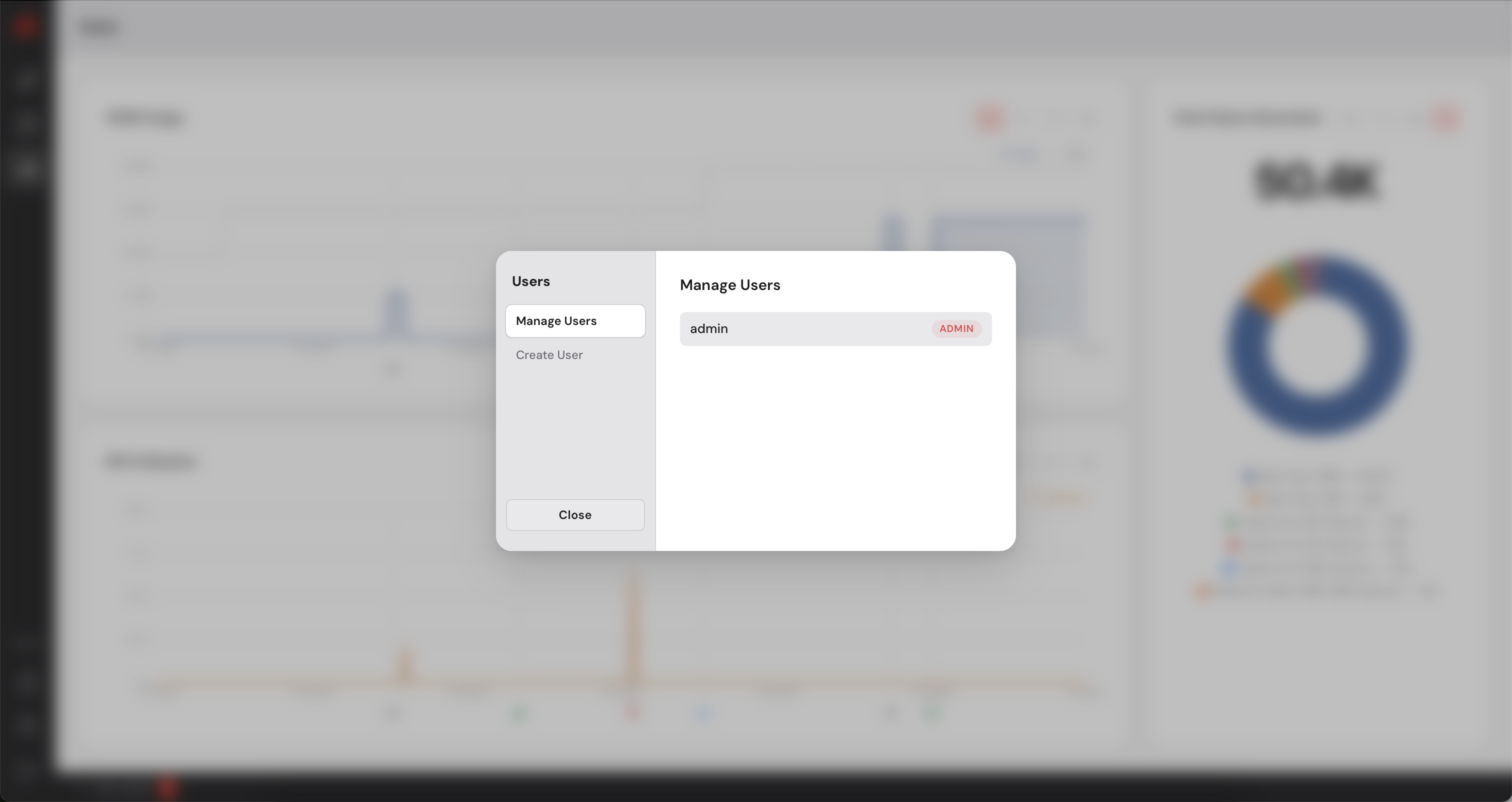
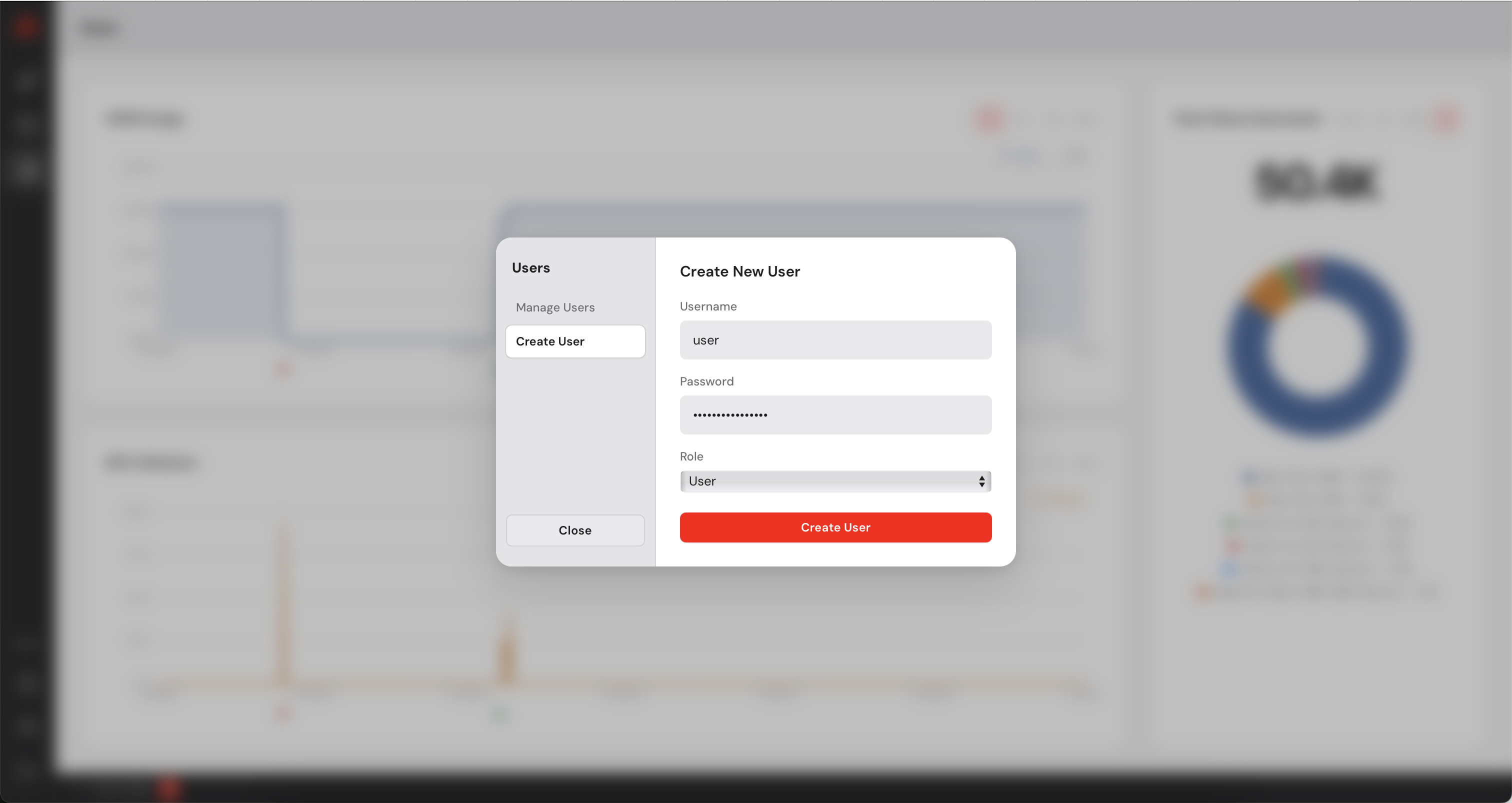
The Control Manager has a built-in user management system. As an administrator you can create additional accounts for colleagues who need access to the dashboard. You can create users with admin privileges or simple users who will not be able to add or remove machines. Simple users can deploy models on the available machines.
 at the bottom of the sidebar.
Updating Anyway uses the same installer as a fresh install. Run the command below, then
restart anyd and any-cm:
curl -sSL https://www.anyway.dev/install.sh | sh
Email: contact@anyway.dev
Documentation: Additional resources and advanced configuration options available upon request.